Logistics
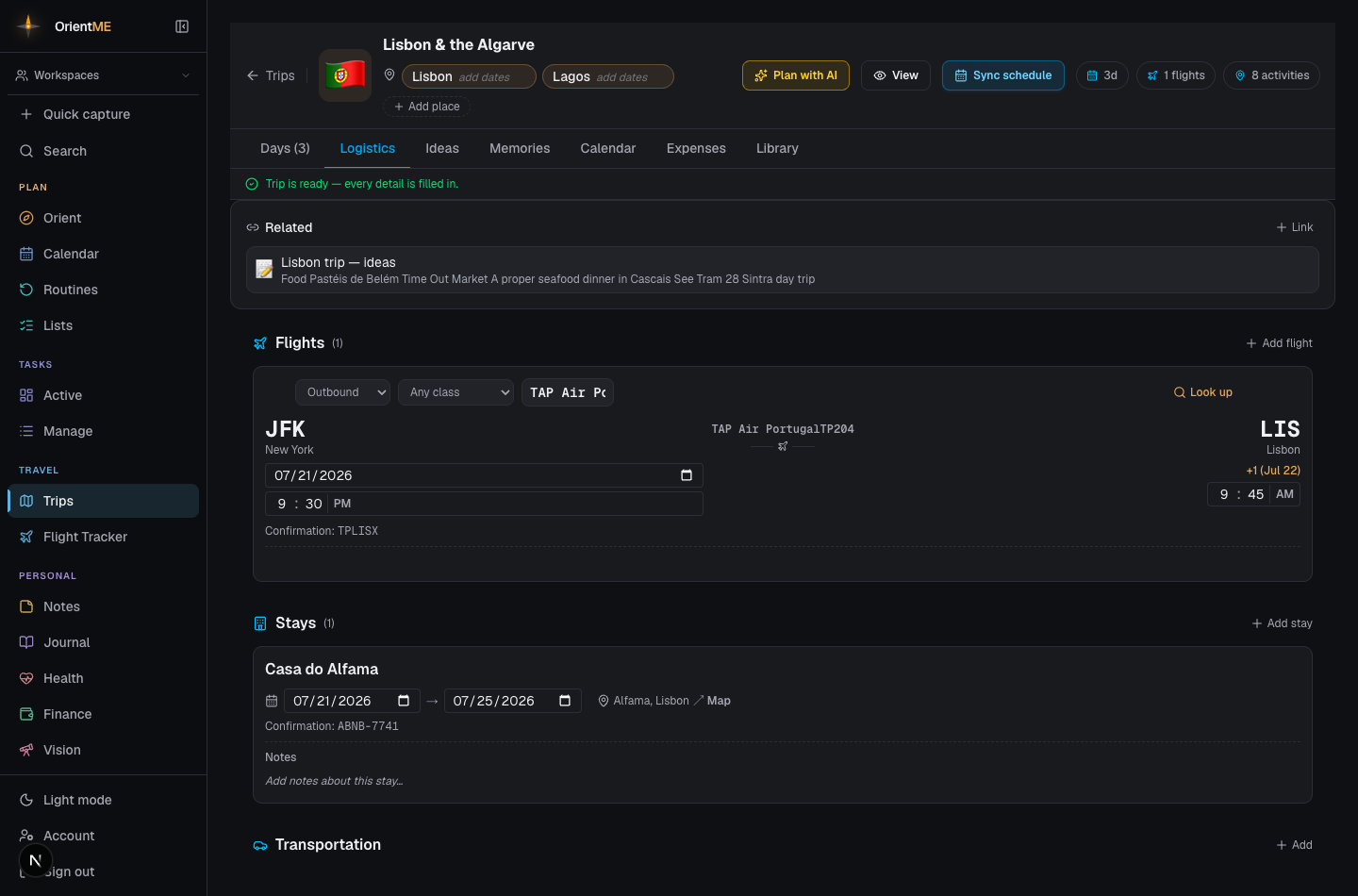
The Logistics tab is where the bookings live: your flights, the places you’re staying, and how you get around. Add them here and OrientME can turn them into your day-by-day skeleton in one click.
What goes here
- Flights — add a flight, then use Look up to auto-fill its schedule from the flight
number. Once a flight is looked up it’s confirmed and locked — its airline, number, route,
dates, and times become read-only so a verified itinerary can’t be changed by accident. To look
up a different flight, delete that flight and add it again. (Confirmation code, cabin, and notes
stay editable.) You can combine several flights into a single multi-leg journey, add
connecting legs, and store a confirmation code. Filling a flight in by hand? Click the from
or to code and search by city or airport name —
tokyooffers Haneda and Narita — and the city is filled in under the code for you, exactly as a looked-up flight shows it. - Stays — hotels and rentals with check-in/check-out dates, an address (with a map link), and a confirmation code.
- Transportation — cars, trains, ferries, and buses, with pickup and drop-off details, and an optional link to the flight they connect to.
Build your days from your bookings
Add your flights and stays first, then click Sync schedule in the header — OrientME creates a day for each date so your itinerary skeleton is built in one click. From there, fill in each day in the Days tab.
Want to track flight prices before you book, or pay with miles? See the Flight tracker and Award flights. Once a flight is booked, the quickest way in is Add flight (on the tracker’s Booked tab, or via Mark as booked on a watched route) — enter the airline, flight number, and date, and the flight lands here under Logistics on the right trip, with its schedule looked up automatically.