Days
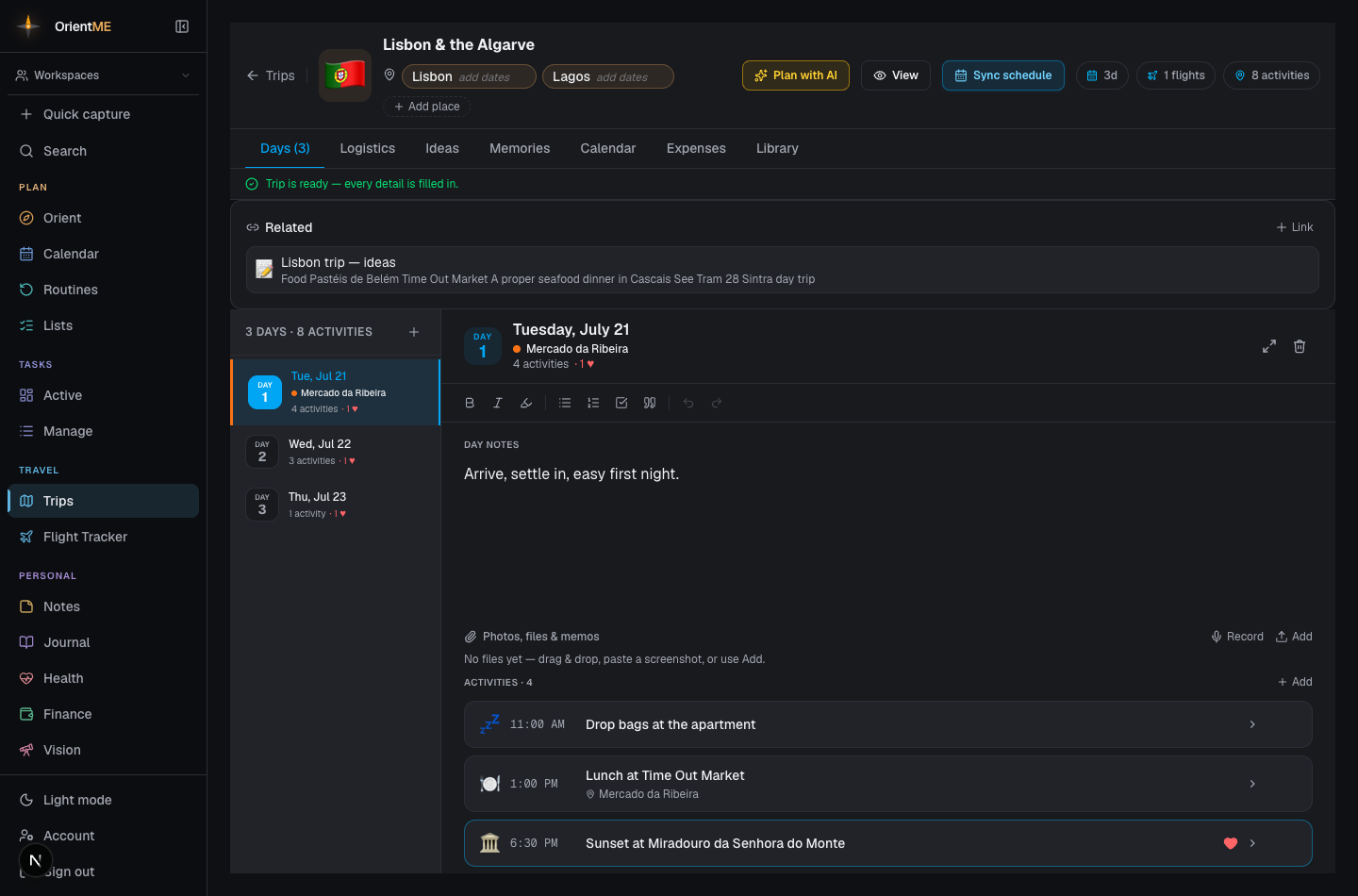
The Days tab is where your trip comes together day by day: a list of days on the left, the day’s editor on the right. Add days yourself, or build the whole skeleton at once with Sync schedule (see Logistics) or Plan with AI.
What’s in a day
The Days tab is a two-pane planner: a list of days on the left, the day’s editor on the right. Add days one at a time or as a range. Each day has:
- Day notes — a rich-text space (with slash commands) for plans and reminders.
- Activities — what you’re doing, each with a category, time, location (linked to maps), an estimated duration and cost, notes, and a heart to mark a highlight.
- Photos, files & voice memos — attach anything to the day, including recorded voice memos.
Activities with a time sort themselves chronologically; you can drag the rest into order, or move an activity to another day.
Multi-city trips
On a multi-city trip, each day shows which city you're in — both in the day list and at the top of the day — with a small color stripe down the side of each day so you can see at a glance when you change cities. A travel day that spans two cities shows them as Paris → Rome.
Jumping to today
When your trip is underway, opening Days jumps straight to today — today’s entry is highlighted with a Today badge so you land on the right day without scrolling.
Have a wish-list item you’ve decided on? In the Ideas tab, Add to day turns any idea into a real activity on the day you pick.
On mobile
The mobile app has the same day-by-day planner. On the Days tab, tap Add day — from the empty state on a brand-new trip, or from the button below the day list — pick a date, and the day appears right away (it defaults to the day after your last one, or your trip’s start date). Open any day to edit its notes, add activities, and attach photos or voice memos, just like on the web.