Getting started

OrientME is your personal command center — tasks, routines, health, finance, travel, notes, journal, and a vision board, connected in one calm, private place. This guide gets you from a fresh account to knowing where everything lives.
Create an account
- Open OrientME and click Request access on the sign-in page.
- Enter your full name, email address, and a password (at least 12 characters — no special characters required, a memorable passphrase works well), then confirm the password. The form checks your password as you type.
- Click Request access. An Almost there screen lists your next steps:
- Confirm your email — we send a confirmation link to your address. Click it to verify; you’ll land on the sign-in page with an “Email confirmed!” banner.
- Wait for approval — shown while new accounts are being reviewed. You’ll receive an email when yours is ready.
While accounts are reviewed, you can’t sign in until yours is approved — even after confirming your email. Once approved, sign in normally.
Didn’t get the confirmation email? Try signing in — if your address still needs confirmation, the sign-in page shows a Resend the confirmation email link. The newest email’s link is the one that works.
You can also sign up with Continue with Google or Continue with Apple when those options are shown. Provider accounts skip the email-confirmation step but may still need approval the first time.
Sign in
- Go to the sign-in page.
- Enter your email or username and password, then click Sign in — or use Continue with Google / Continue with Apple.
- You’ll land on Orient, your daily home screen.
Your first-run tour
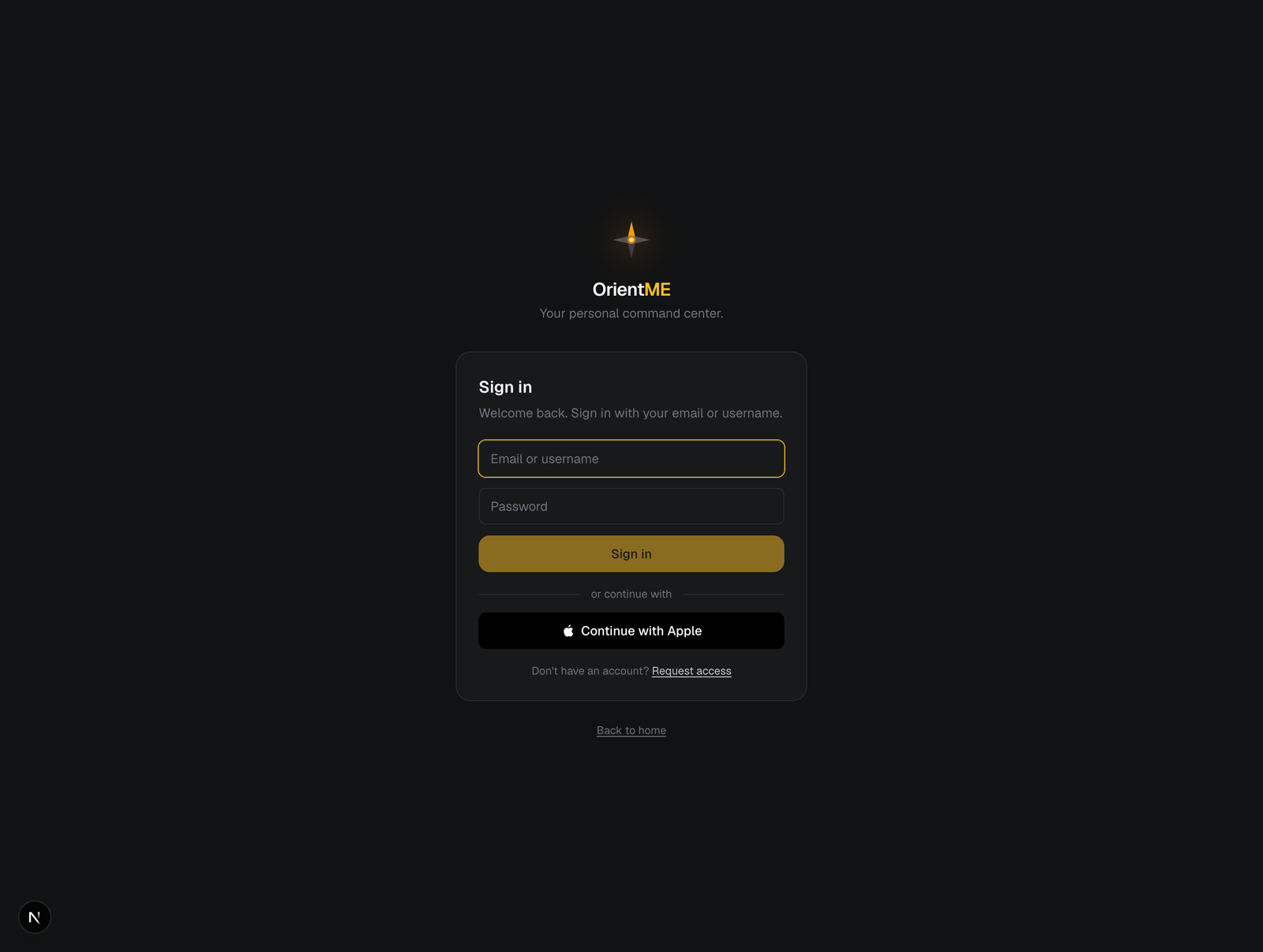
The first time you sign in, a Welcome to OrientME dialog offers three ways to start:
| Choice | What happens |
|---|---|
| ✨ Personalize my space | A short two-step wizard asks which areas matter most — Tasks & cycles, Routines, Health, Finance, Vision board, Journal & notes, or Travel — and what you’re aiming for, then builds tailored starter content (a starter project and tasks, habit routines, vision cards, a first journal prompt, and a starter trip if you pick Travel). |
| 👀 Explore with sample data first | Loads a realistic example week so you can look around: a board of tasks with subtasks and planned dates, a routine pack, notes and a sticky wall, a week of journal entries, a fully planned upcoming trip (flight, stay, and day-by-day itinerary), two calendar events, and vision cards. A banner lets you Clear the samples or Personalize whenever you’re ready. |
| Start with a blank slate | An empty app — start adding your own content right away. |
When the wizard finishes, a Your space is ready summary lists everything it created — click any entry to jump straight to it, or Take me to Today to start your day. If you picked Travel, the starter trip already has dates about six weeks out and two ideas waiting; add a destination on the trip page and you can plan it with AI.
Sample content is made of real, editable rows, each marked with a small Sample tag so you can tell it from your own. Clear removes only the examples — anything you create yourself is kept.
Changed your mind later? Re-open this dialog any time from Account → Getting started → Show the welcome tour (on mobile, Personal → Getting started).
Find your way around (web)
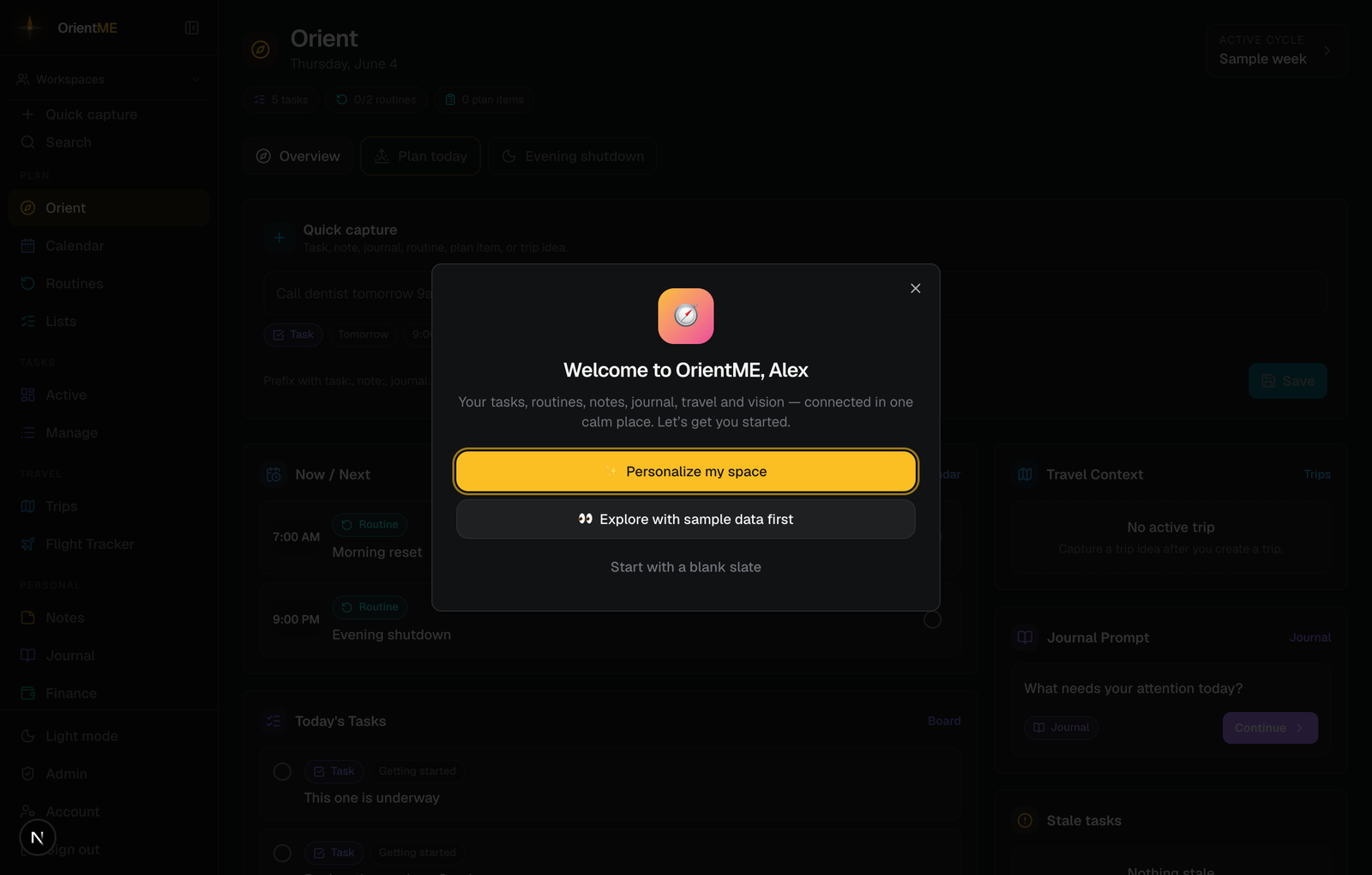
On desktop, the left sidebar is your main navigation. On narrow screens it collapses into a top bar with a menu button. The sidebar groups everything into four sections:
| Section | What’s inside |
|---|---|
| Plan | Orient (your daily hub), Calendar, Routines, and Lists |
| Tasks | Active (the current cycle board) and Manage (projects, cycles, and the queue) |
| Travel | Trips and Flight Tracker (live flight watches, including award/miles search) |
| Personal | Notes, Journal, Health, Finance, and Vision |
Each section header wears its feature accent color, so a quick glance tells you which area you’re in. At the top of the sidebar you’ll also find Quick capture (for adding anything fast), Search, and a Workspaces menu. The footer has a light/dark toggle, your Account, and Sign out.
Press C anywhere to open Quick capture, or N on the board to add a task. See Quick capture for the full list of shortcuts.
Find your way around (mobile)
The companion mobile app puts the essentials a thumb away with a tab bar: Today, Tasks, Plan (routines, plans, and lists), Calendar, and Travel, plus a Personal tab that holds Notes, Journal, Health (wellness, training, and recipes), Finance, Vision, appearance, and account. The round + button in the center of the tab bar opens Quick capture from any screen. See the mobile app guide for what each tab covers.
Where to go next
- Tasks & board — plan and move work on a focused board
- Routines & plans — build daily, weekly, and monthly habits
- Health — wellness check-ins, vitals, training, and recipes
- Finance — accounts, net worth, and cash flow
- Trips & itineraries — plan a trip day by day, or Plan with AI
- Account & sign-in — manage how you sign in, switch units, turn on two-step sign-in, and delete your data