Routines & plans

The Routines & Plans page has two sides, switched with the Routines / Plans toggle in the header:
- Routines — recurring check-ins you do on a rhythm (daily, weekly, monthly).
- Plans — time-boxed collections of items for a week, month, or year.
On the mobile app, all of this lives under the Plan tab, together with Lists — switch between Routines, Plans, and Lists with the control at the top of the screen.
Routines
Routines are grouped into three cards — Daily, Weekly, and Monthly — each showing a completion count and progress bar.
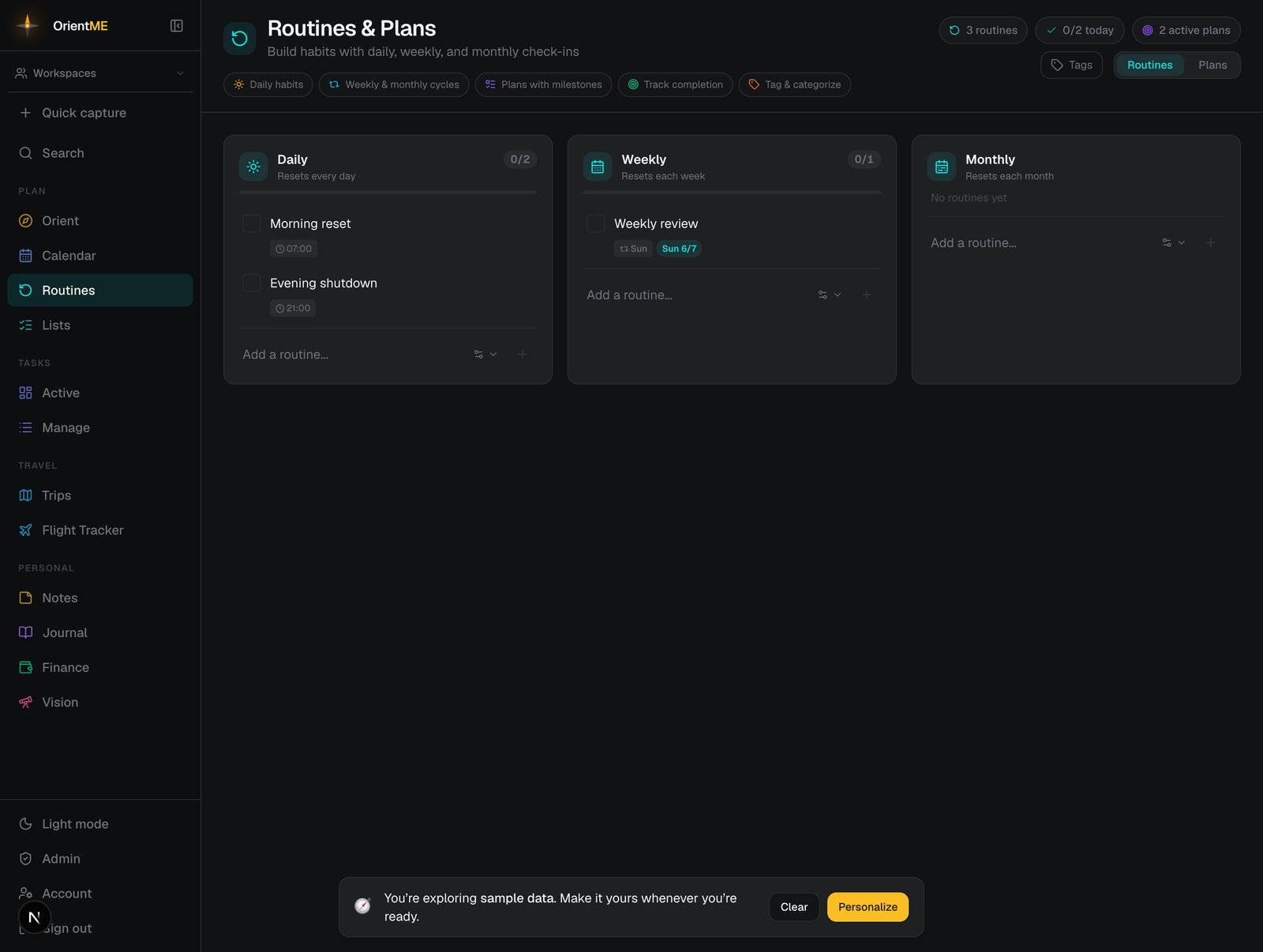
Add a routine
- In the Daily, Weekly, or Monthly card, type into Add a routine….
- Optionally open the options panel (the gear) to set a schedule (see below).
- Press Enter. The field clears and stays focused so you can add several quickly.
Set the schedule
The options panel adapts to the card you’re in:
| Control | What it does |
|---|---|
| Time | An optional time of day; leave blank for no specific time |
| Every N | Repeat every N days, weeks, or months. With an interval above 1, a from date sets the anchor |
| Weekly days | Toggle the weekdays a weekly routine should fire (Sun–Sat) |
| Monthly — on dates | Pick one or more days of the month (for example the 1st and 15th) |
| Monthly — on weekdays | Pick positions (first, second, third, fourth, last) plus a weekday — for example the first and last Friday |
| End date | Permanently stop the routine after a date |
| Pause | Temporarily suspend it (preset 1 week / 2 weeks / 1 month, or a custom date) |
For a monthly routine, picking more than one date or position makes it fire several times a month — handy for things like “1st and 15th” bills or a “first and last Friday” review.
Reading a routine row
Each routine shows a checkbox to mark it done plus two schedule chips: a muted cadence chip that describes the rule (“Every day”, “Mon, Wed, Fri”, “Day 1, 15”), and an accent due chip — a solid Today pill when it’s due today, otherwise the next date as Thu 6/3. You may also see a time, an “ends” date, a “paused until” date, a linked note, and colored tags.
Checking off a scheduled weekly or monthly routine on a day it isn’t due records its most recent scheduled day in the current week or month — tick a Mon/Wed routine on Thursday and Wednesday gets the checkmark on your calendar, so your history stays truthful. If its next scheduled day hasn’t arrived yet this week or month, the checkbox shows as a muted placeholder until then (the due chip tells you when), and the routine sits out of the card’s done count.
Hover a row for more actions: link a reference note, move it between Personal and a workspace, edit, or delete.
The Daily card only lists routines due today; daily routines on a longer interval show as muted Upcoming previews so you can still see them coming. Weekly and monthly cards always list their routines for planning.
Pause, end, and reactivate
Pausing hides a routine until its resume date; ending stops it for good. Nothing is lost either way. Ended and currently paused routines move into a collapsible Inactive card below the grid, where you can Reactivate an ended routine (bringing it back onto your schedule and calendar), Resume a paused one early, or delete either — handy for something like a peptide cycle you run every few weeks, end, then pick up again later. A paused routine also comes back on its own once its resume date arrives.
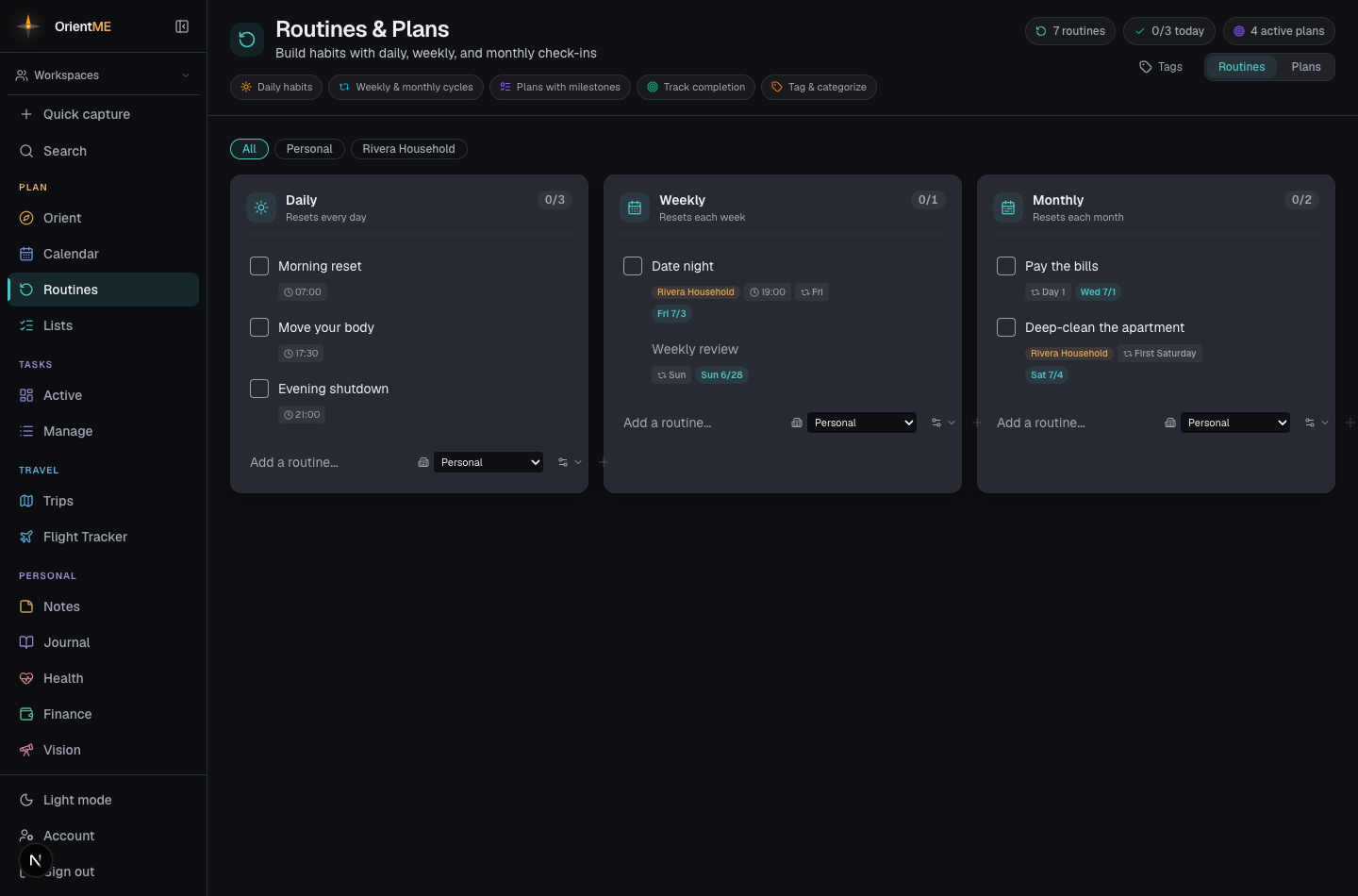
Reference notes
Click the note icon on a routine to attach a reference note — a checklist, a script, a recipe. It opens in a quick read-only pop-up so you don’t lose your place. See Notes & stickies.
Plans
The Plans tab holds time-boxed collections. A plan covers a specific week, month, or year (great for birthdays and annual tasks), and rotates out of view once its period has passed.
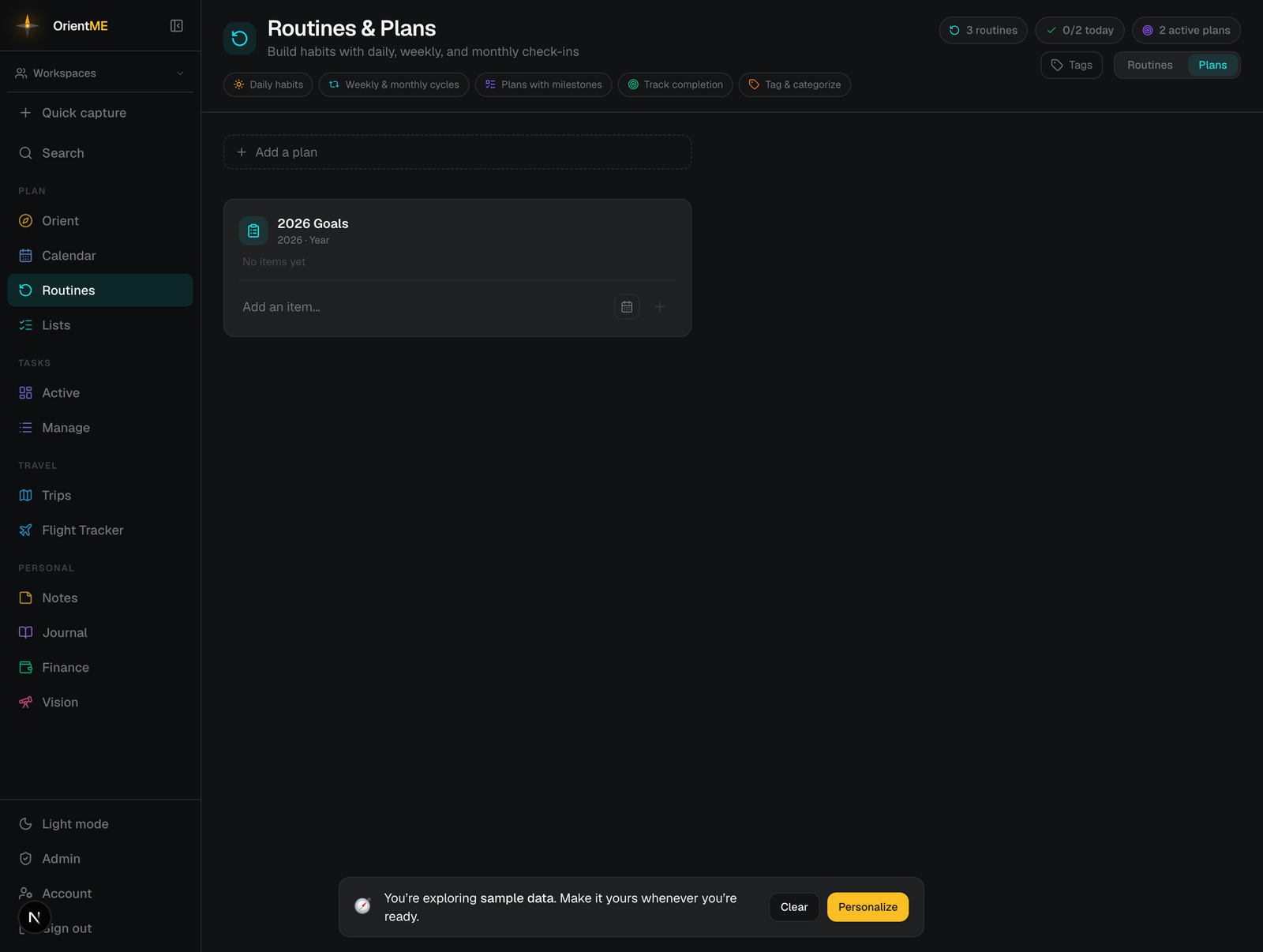
Create a plan
Click Add a plan, choose Week / Month / Year, pick the period, optionally name it, and click Create. Past plans tuck into a collapsible Past plans section.
Add items
Type into Add an item… and press Enter. Before adding, you can:
- set a default tag that auto-applies to every new item,
- tag the single item, and
- give it a date and time — for week plans you tap a weekday; otherwise you pick a date, and an optional time appears (leave it blank for an all-day item).
Item rows show a Today / Thu 6/3 date pill, an optional time, and tag chips. Click a tag chip to filter the plan to just that tag. Checking an item completes it.
Completed items collapse into a Done (n) section at the bottom of the card, and pasting several lines into Add an item… offers to add them all at once. Each card's ⋯ menu has Uncheck all (reset every checkmark) and Clear completed (delete the checked-off items, after a confirmation) — see Lists for the full rundown.
Plans and untimed checklists share the same item design. For grocery-style lists that never
expire, see Lists. To file an item into a plan in one line, use
Quick capture with a plan: prefix.
Plans, lists, and routines can all be shared with a workspace for shared completion, while your tags stay personal — see Workspaces & sharing.