Workspaces & sharing

A workspace is how you share specific things with other people. It’s not a separate mode you switch into — your lists look the same. On the web, shared items carry a small workspace badge; in the mobile app, shared items appear in your normal lists without a badge for now. Today, three kinds of things can be shared into a workspace:
Everything else — finance, notes, journal, vision — stays personal.
Workspaces are created and managed on the web. The mobile app shows items that are already shared with you, but you can’t create or manage a workspace there.
Create a workspace
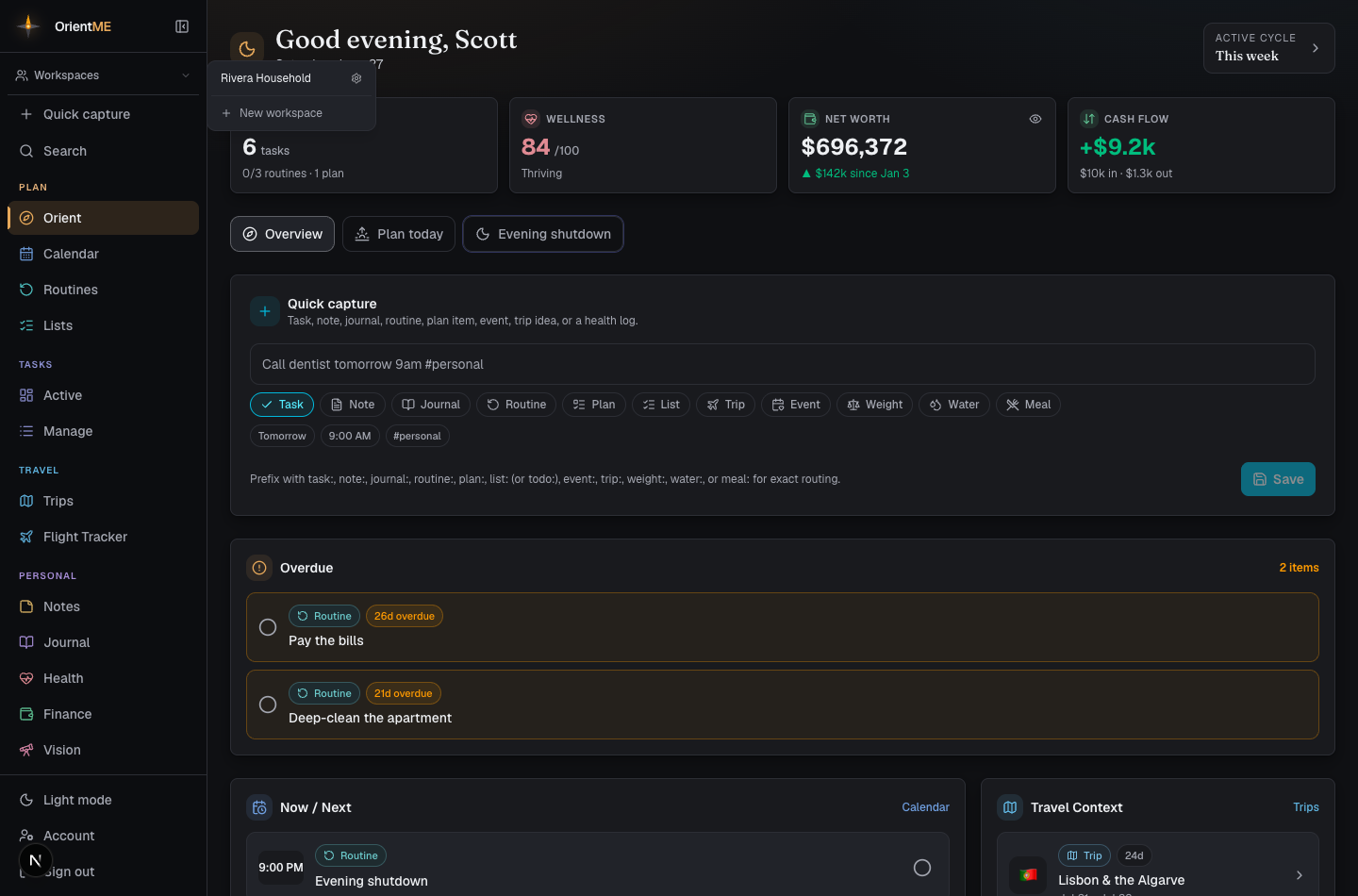
Open the Workspaces menu in the sidebar and click New workspace, then give it a name. Once you belong to at least one workspace, you’ll see source-filter chips and sharing controls appear in the relevant areas.
Creating a workspace requires an active plan or trial. Being a member of one never does — if someone invites you to their workspace, you can see and collaborate on everything shared there regardless of your own plan.
Invite and manage members
People join a workspace by email invitation — you send an invite, and they join the moment they accept it. Open a workspace’s settings to manage it:
- Members — everyone with access, with owner and admin badges.
- Invite someone — owners and admins enter an email address and click Send invite. The person receives an email with an Accept the invitation link. They join only when they accept — nothing happens to their account (or yours) until then.
- Pending invites — invites that haven’t been accepted yet appear here, each showing when it was sent and when it expires, with two actions: Resend (sends the same link again and restarts its validity window) and Revoke (disables the link immediately).
- Remove / leave — owners and admins can remove members; any member can leave. Either way they lose access to the workspace’s shared routines, plans, and trips — and anything they personally shared into the workspace goes with them, back to their own personal lists. Nothing is deleted, but the remaining members no longer see the departing person’s items.
- Rename and a danger zone to delete the workspace (owner only). Deleting a workspace removes the workspace and its member list — shared items aren’t deleted: every routine, plan, and trip goes back to the person who created it as a personal item.
What the invitee sees
The invitation email opens an accept page showing who invited them, which workspace, and a quick sense of what’s already shared there. From that page they either:
- Create a free account — name and password, right on the page; they land signed in with the shared items already visible. No separate sign-up or email-confirmation detour.
- Sign in — if they already use OrientME, they sign in and join as themselves with one click.
Joining a workspace is always free, whatever the member’s own plan — an invitee only ever sees what’s shared into the workspace, and nothing of their own is exposed to anyone.
Invitations expire after 7 days — use Resend to renew one. A workspace holds up to 10 people, counting members and pending invites together; to make room, revoke a pending invite or remove a member. An invitation link works once — opening it again after it's been used simply says so, and if you're already signed in, an Open OrientME button takes you straight back into the app.
Move things in and out
Once you’re in a workspace, Routines and Trips lists show source-filter chips — All / Personal / [workspace] — to filter by where an item lives. To re-home an item:
| Item | How |
|---|---|
| Routine | Use the Move to… control on the routine row |
| Plan or list | Use the Share control to pick Personal or a workspace |
| Trip | Share or move it to a workspace from the trips list (or pick one when creating it) |
On Routines, the selected source chip also becomes the add target — pick a workspace chip and new routines you create go straight into that workspace.
What sharing means
Shared routines show up in everyone’s routine list and on Today, with per-person check-offs so each member tracks their own completion. Shared plans and lists have shared completion — everyone sees the same checked items — while tags stay personal to you. A shared trip also unlocks expense splitting among the workspace’s members, so a group trip’s costs can be divided across the people on it. See Trips and Sharing a trip for how a workspace differs from a public read-only share link.