Flight tracker

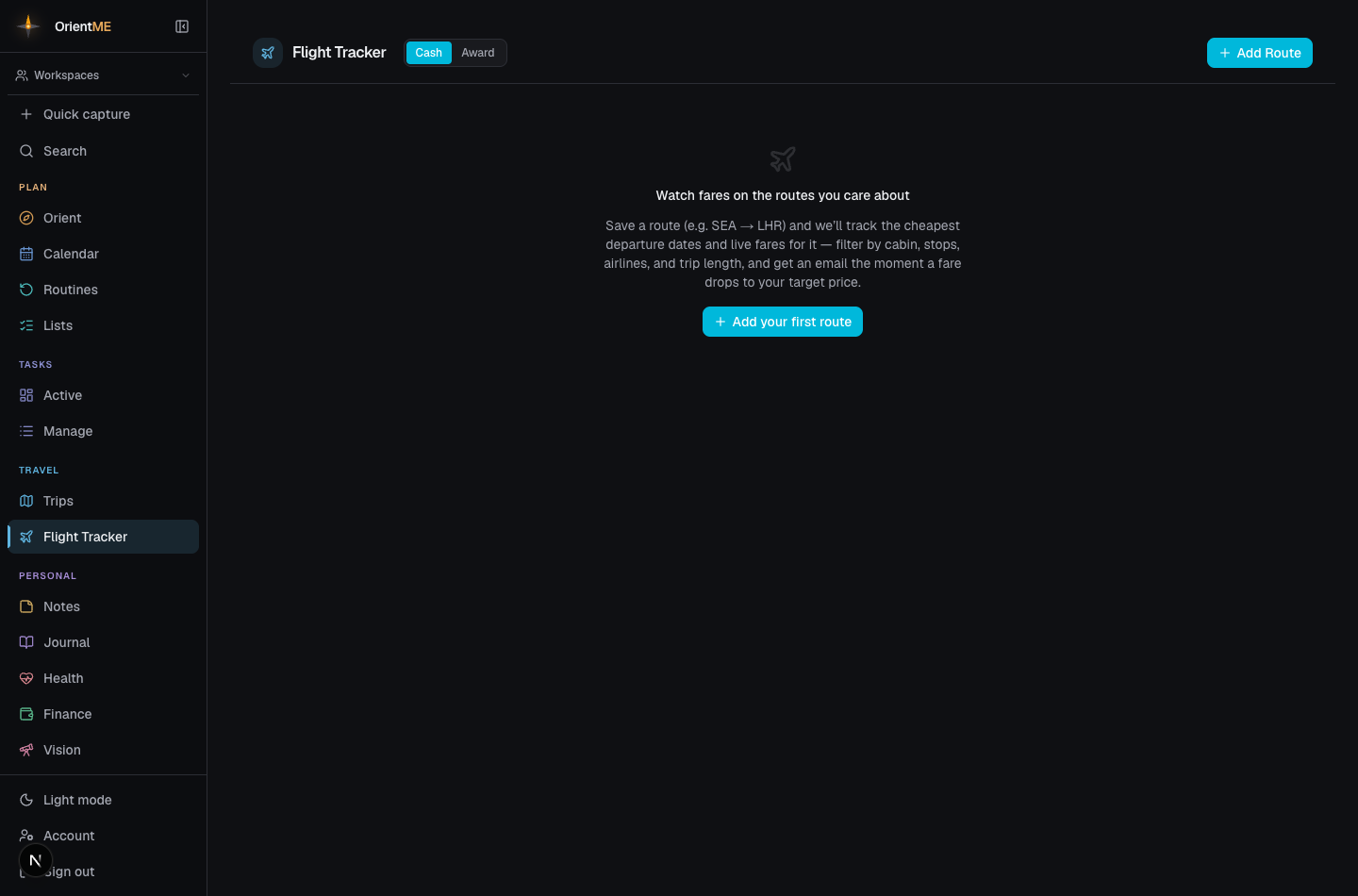
The Flight Tracker watches the routes you care about so you can compare prices before you book. Save a route once with your preferences, then refresh whenever you want to see the cheapest departure dates and the flights on them. It lives under Travel → Flights, on the Cash tab.
At the top of the page a Cash / Award / Booked switch chooses what you're looking at: Cash tracks paid fares, Award tracks seats you can book with points and miles — see Award flights — and Booked is the flights you've actually booked, gathered from all your trips (see The Booked tab below). The next few sections cover the Cash tab.
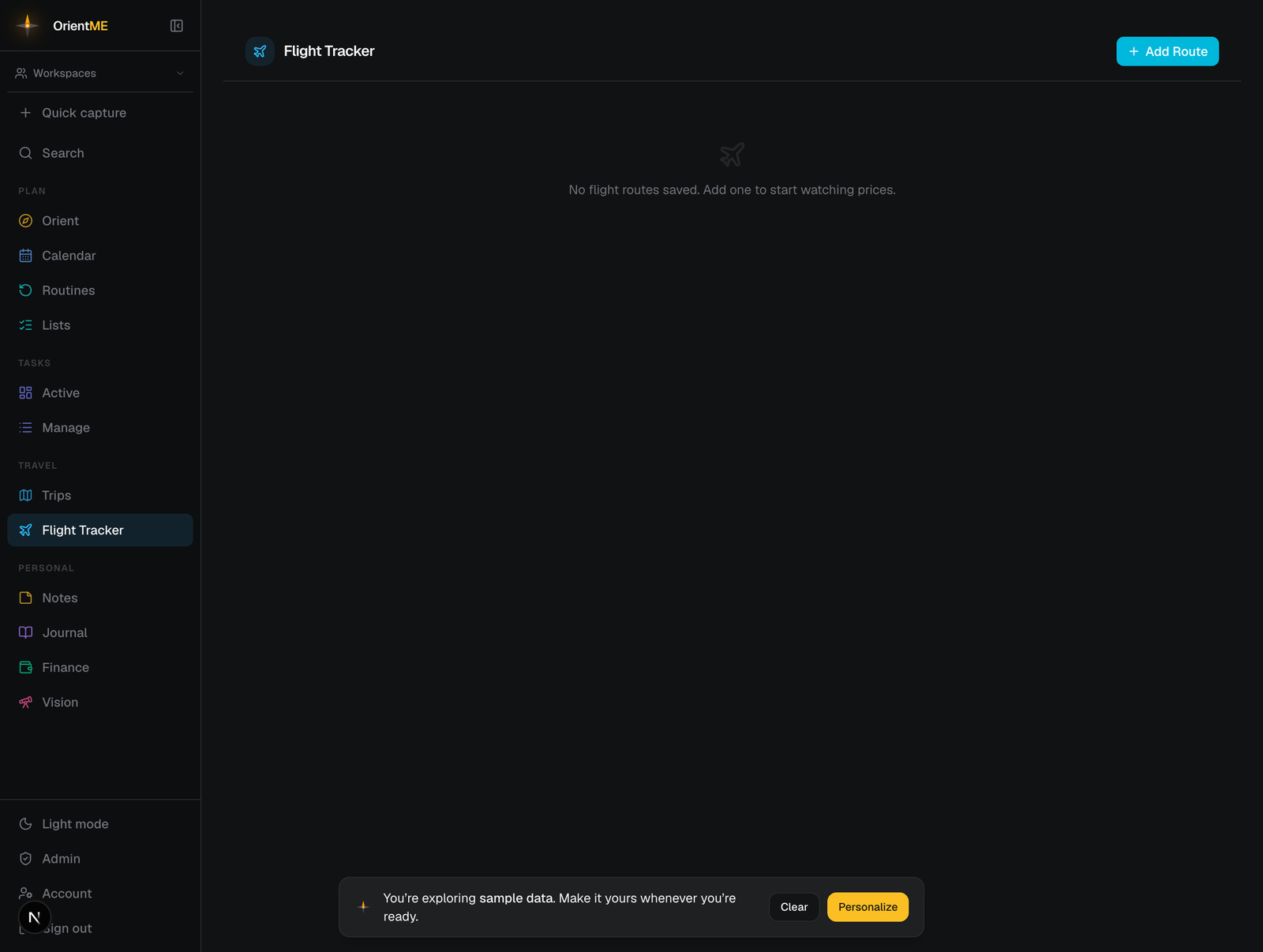
Add a route
The first time you open the tracker (before any routes are saved), the page explains what it does and offers Add your first route — it opens the same form as Add route.
Click Add route and fill in the search:
| Field | Notes |
|---|---|
| Origin (required) | The airport you're flying from — type a city, an airport name or the code (see Finding an airport) |
| Destination (required) | The airport you're flying to |
| Label | A friendly name like “Summer trip” |
| Cabin | Any class, Economy, Premium Economy, Business, or First |
| Stops | Any stops, Non-stop only, or Max 1 stop |
| Airlines | A saved airline filter (see below) |
| From / To date | The departure-date window to search |
| Max hrs | Limit results to flights within this total journey time — each date then shows the cheapest fare that fits |
Click Save. Origin and destination are all you strictly need; the rest narrows the results.
Finding an airport
You never have to know the code. Start typing in Origin or Destination and OrientME suggests airports as you go — search by:
- City —
parisfinds Charles de Gaulle, Orly and Le Bourget - Airport name —
heathrow,kennedy,o'hare - The code itself —
SEA,LHR - A metro code or a place people name instead of the city —
NYC,LON,Maui,Vail
Each suggestion shows the code, the airport's full name and its city and country, so you can be sure you picked the right one. Use ↑ / ↓ and Enter to choose without leaving the keyboard. Once picked, the field keeps the 3-letter code and the city appears just beneath it.
Before you type anything, the list offers the airports already on your saved routes — handy when the next trip starts from the same home airport.
If you know a code that isn't in the list (a brand-new airport, say), type it anyway: OrientME accepts any 3-letter code and just notes that it doesn't recognise it.
Saved routes show the cities under the codes, so SEA → CDG also reads Seattle → Paris at a
glance. The same picker and the same city lines appear in the mobile app.
Airline filters
An airline filter is a reusable preset of carriers plus a mode:
- Only these — show only flights on the airlines you pick.
- Exclude these — hide flights on those airlines.
Create one from Manage airline filters, name it, choose Only / Exclude, and pick airlines from the searchable list. Then select it when adding or editing a route.
Refresh and read the results
Click a route’s refresh icon (or Refresh all) and OrientME finds the cheapest departure dates in your window, then the flights on each. Click the route to expand a table of those dates — price, airline, flight numbers, departure and arrival, duration, and stops, with the cheapest date tagged.
Booking a fare
The prices you see are tracked from Google Flights, so each date row gives you Google as one booking option — it opens that exact date and fare on Google Flights, where you finish with the airline. Right beside it, under Compare, are Kiwi and Aviasales — partner sites that often list the same trip for a similar or better price. All three are one tap away and weighted equally, so it’s worth a quick look at each before you book.
A tighter Max hrs makes a noisy long-haul route much easier to scan. For each date you'll see the cheapest flight that still fits the limit — so on a route where the very cheapest option is a long multi-stop haul, OrientME shows you the shortest-enough fare instead of the marathon one. A date is only dropped when nothing on it comes in under your limit.
Get a price alert
Don’t want to keep checking back? Turn on a price alert and OrientME will email you when the fare drops.
When you add or edit a route, tick Email me when a fare drops to or below and enter your target price (any whole-dollar amount). The alert is always sent to the email on your account — for your security it can't be routed to a different address, so the destination is shown but not editable.
From then on, whenever a check finds the best fare at or below your target, you’ll get an email with the price, the date, and the same Google / Kiwi / Aviasales booking links so you can jump straight to booking. Every route has a bell in its row — lit when an alert is set (click it any time to edit), or struck through when there isn’t one (click it to add one).
You decide how often. Right under the target price, How often lets you choose:
- Every check (default) — an email on every check (about once a day) while the fare is at or below your target. Best if you don’t want to miss a single good day.
- Weekly — at most one reminder a week while it stays below target, so a route that’s often cheap doesn’t fill your inbox.
- Only new lows — only when the fare beats the lowest price it last emailed you about.
Whichever you pick, a fare dropping to a brand-new low always emails you right away.
Alerts ride along with the regular background checks, so you’ll hear about a drop even when the app is closed. Price alerts are available for cash fares.
Deal alerts — no target needed
Not sure what a good price even is for a route? That's what deal alerts are for. Every watched route quietly learns its own typical price from the daily checks, and once it has about two weeks of history, OrientME flags any fare that lands well below typical — you'll see the route's usual price under its current fare, and a "below typical" badge the day a real deal shows up.
Deal alerts are on by default for every new route (you can turn them off per route in the same bell popup as the price alert). When a deal appears you get one email — and if the fare keeps falling, another — but a fare that just sits at a deal price won't message you every day.
The alert tells you how far below typical the fare is, and whether it's the lowest price seen since you started watching, so you can judge it at a glance.
Deal alerts and your target-price alert work independently — set a target when you know your number, and let deal alerts catch the surprises on routes where you don't.
Alerts on your phone
If you use the OrientME mobile app, every alert — price target, deal, or award space — also arrives as a push notification on your phone, alongside the email. Tap it to jump straight to your watched routes. Notifications follow your account automatically: sign in on a device and they start, sign out and they stop.
Manage routes
Hover a route for quick actions: refresh just that route, edit its preferences, duplicate it (handy for trying a variation), or delete it. Saved routes keep checking so the prices stay reasonably fresh between visits.
You can have up to 10 routes actively checking at once. Pausing a route frees a slot — paused routes keep their history and can be resumed any time.
Mark a fare as booked
When you actually book a fare from a route you’re watching, use Mark as booked on that route. It opens the Add flight form with the departure date pre-filled from the watched fare and a reminder of the route — enter the flight number from your booking confirmation (a fare watch tracks a route, not one specific flight), adjust the date if needed, and the flight is filed onto a trip (see the next section). Your watch stays put, so you can keep comparing prices for a return leg or a travel companion, or delete it once you’re done.
Add a booked flight
Add flight turns a booking confirmation into part of your travel plans in one step. Enter the airline, the flight number, and the date (plus a confirmation code if you have it) — OrientME looks up the flight’s schedule automatically, fills in the route and the departure and arrival times, and files the flight where it belongs:
- If one of your trips covers that date (or already has the matching outbound or return flight), the flight is added to that trip’s Logistics tab.
- If more than one trip could match, you’re asked which one to use.
- If no trip matches, OrientME creates a small trip for you — named after the destination city, with the flight already on it. Perfect for a quick work hop or a weekend visit: open it any time to add days, stays, ideas, or expenses. It’s a full trip like any other.
- If you’ve already added that flight, OrientME tells you which trip it’s on instead of creating a duplicate.
If the schedule can’t be found (a very new or unusual flight number), you can still choose to add the flight without times and fill them in later from the trip’s Logistics tab.
You can also set the Cabin (Economy, Premium Economy, Business, or First) right in the Add flight form — leave it unset if you’re not sure.
Have the confirmation email handy? Click Paste a confirmation in the Add flight form, paste the email’s text, and click Extract flights — OrientME picks out the details and returns you to the form with the airline, flight number, date, and confirmation code filled in, plus a summary line showing the route and times it read (edit anything before you save). The departure and arrival times come straight from the confirmation itself, so what you booked is exactly what’s filed. The cabin is detected too and pre-selected in the Cabin control — change it if the airline’s fare name didn’t match, or if you were upgraded. A round-trip confirmation lists both flights with a single Add all button, and the return leg lands on the same trip as the outbound.
On the trip, each flight is labelled Outbound, Return, or left unlabelled: the first flight you add is marked outbound, and a flight flying the reverse route becomes the return automatically — so a round trip reads correctly without any tagging. You can change a flight’s label any time from the trip’s Logistics tab.
Forward a flight confirmation
The fastest way of all: forward the airline’s confirmation email to
[email protected] — no typing, no forms. Within a minute or two, OrientME reads
the confirmation, pulls out each flight (a round trip imports both legs), and files it exactly
like Add flight does: onto the trip covering those dates, or a new small
trip named after the destination city. When the import lands you get a confirmation email back,
and the flight appears on the trip’s Logistics tab and on the
Booked tab, where a small via email tag shows how it got there.
A few things to know:
- Forward from the email address you sign in with. Booking confirmations arriving somewhere else — a work address, or a partner who books your travel? Add and verify that address under Account → Email import first — see Email import.
- The times come from the confirmation itself, so what you booked is exactly what's filed. If the email is missing a detail, the flight still imports and you can fill the gap later from the trip's Logistics tab.
- Forwarding the same confirmation twice won't create a duplicate — OrientME recognizes a flight it already has.
- If more than one trip could match, the flight goes to the best fit — the trip whose dates cover it — rather than waiting in limbo. You can always move it afterwards from the trip's Logistics tab.
For your security, only mail from your own address or a verified authorized sender is accepted, and each message must pass standard email authenticity checks. Anything else is quietly set aside — OrientME never replies to unrecognized mail.
The Booked tab
The Booked tab is your upcoming departures in one list: every booked flight across all your trips, soonest first, with the airline, flight number, route, times, confirmation code, and the trip each one belongs to. Add flight lives here too.
Your next flight also meets you on Orient, your daily hub — when a departure is within the next seven days, it appears in the Travel card there.
The Cash and Award tabs are about finding a flight. Once you’ve booked, Mark as booked (or Add flight on the Booked tab) files it onto a trip so it stays with the rest of your itinerary.
Booking with points instead of cash? Switch to the Award tab at the top of the page. Award flights is the companion that watches award (points & miles) availability across many airline programs — connect your own seats.aero account and it searches live award space on your saved routes, with the same kind of price-drop alerts. And the Award Points page keeps your balances and shows where each card's points can transfer, so you know which programs you can actually pay with.