Quick capture

Quick capture is the fastest way to get something out of your head and into the right place. Type one line, and OrientME figures out what kind of thing it is, when it’s due, and how to tag it — then files it for you.
Open it from the Quick capture button in the sidebar, by pressing C or Cmd/Ctrl+J anywhere (when you’re not typing), or inline on Orient. On the mobile app, tap the round + in the middle of the tab bar — the capture sheet slides up over whatever tab you’re on.
Quick capture is for creating; Search (Cmd/Ctrl+K) is for finding. The two are separate so there’s only ever one way to do each. If a search turns up nothing, it offers a one-click Capture button that drops straight into quick capture with your text already filled in.
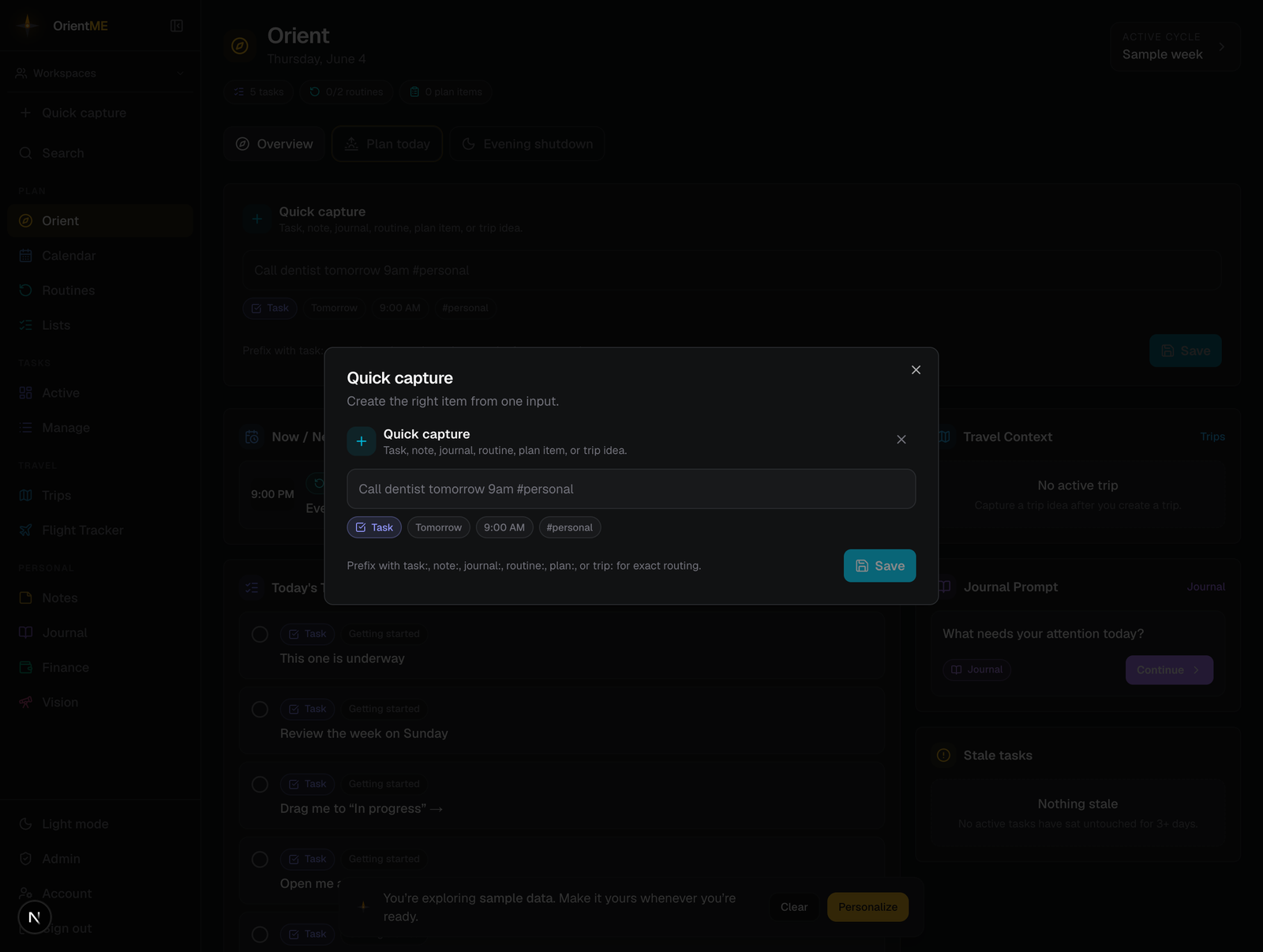
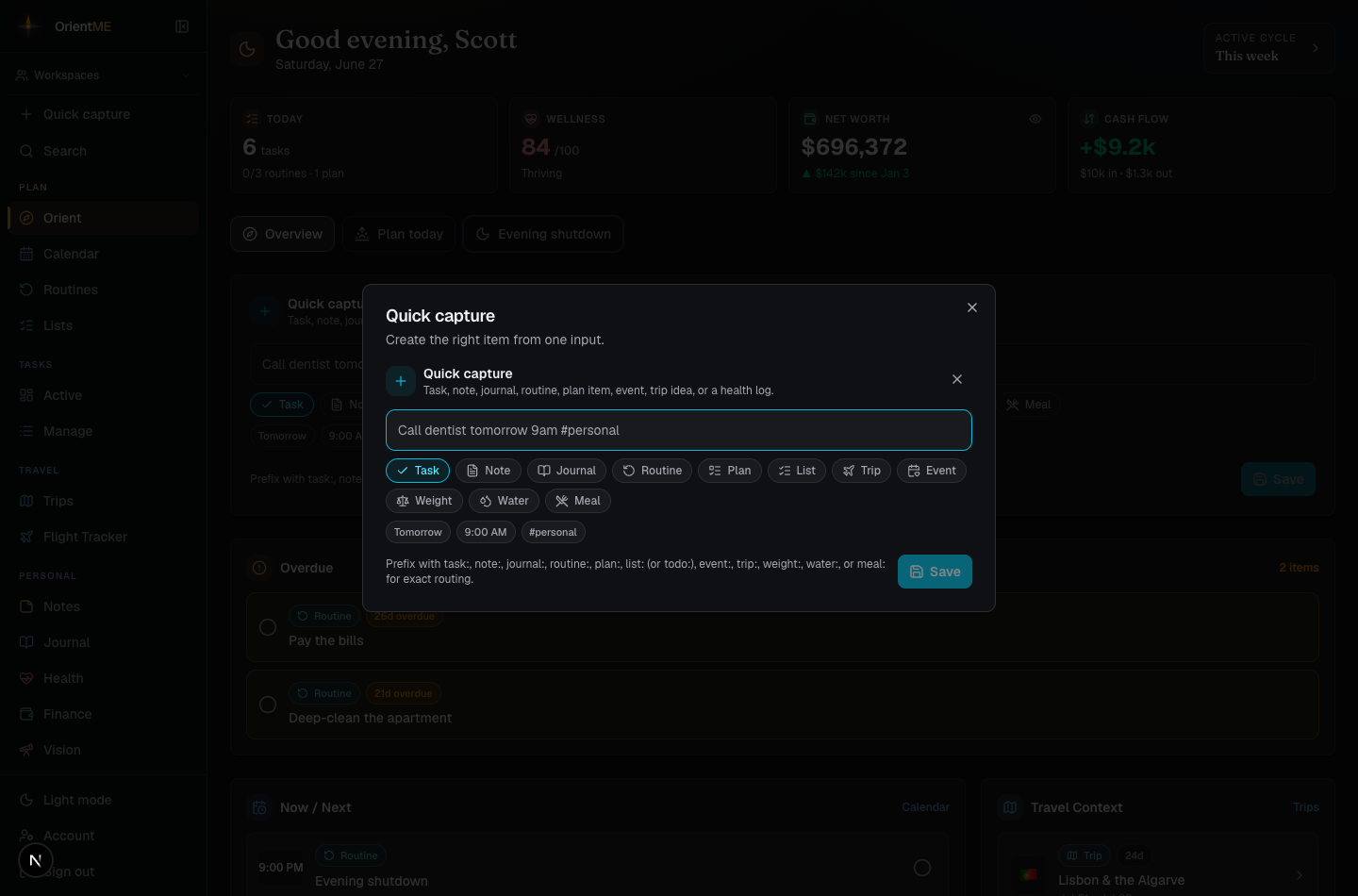
Just write it naturally
Type something like “Call dentist tomorrow 9am #personal”. As you type, preview chips show what OrientME detected — the item type, the date, the time, and any tags. It understands:
| You type | OrientME reads |
|---|---|
| today, tonight, tomorrow, in 3 days, next week, friday, next mon, Jun 5, 2026-06-05 | the due date |
| 9am, 9:30pm, 14:30, at 20, noon, midnight | the time |
| #personal, #work | tags (matched to your existing tags) |
| every day, every monday, monthly on 15 | a recurring routine |
Anything it reads as a date or time is also tidied out of the title — “Renew passport in 3 days” becomes a task called Renew passport, due three days from now.
Pick the type with one tap
Under the input is a row of type buttons — Task, Note, Sticky, Journal, Routine, Plan, List, Trip, Event, plus health buttons for Weight, Water, and Meal. OrientME highlights the one it guessed from your text. Tap a button and it drops that type's keyword into the box for you (replacing any previous one) and puts the cursor right after it — so you just keep typing the rest, instead of spelling out the keyword yourself. Because the keyword stays in the box, your choice sticks as you type; there's no syntax to remember.
Send it exactly where you want
Prefer the keyboard? Start your line with a prefix to route it precisely (the same choice as the type buttons):
| Prefix | Creates |
|---|---|
task: | a task |
note: | a note |
sticky: | a sticky note on the wall — add a date and it becomes a dated sticky that surfaces as a reminder |
journal: | a journal entry |
routine: (or habit:) | a routine |
event: | an event — a dated occasion you’re attending |
plan: | a plan item (time-based plans only) |
list: (or todo:) | a list item (untimed lists, starting with To Do) |
trip: (or idea:) | a trip idea |
weight: | a body-weight entry in Health (e.g. weight: 84.2) |
water: (or hydration:) | a water/hydration entry in Health (e.g. water 500) |
meal: (or ate: / food:) | a meal in Health (e.g. ate: oatmeal and berries) |
Log your day from anywhere. weight: and water: pick up the number you type, and meal:
files a quick entry into your day's nutrition — so you can jot weight: 84.2 from the same box you
use for tasks and notes, then tap Open Health to see it logged. This works on the phone too:
the number is read in your units (US or metric, from the Account toggle), and after saving,
Open Health jumps straight to the Health home — or the nutrition log for a meal.
Plans and lists are separate pools. plan: only files into time-based plans, and list:
only files into untimed lists — so the two never get mixed up. A todo: line always lands on
your To Do list (OrientME creates the list for you if it doesn’t exist yet).
Fine-tune before saving
Once you start typing, a small detail panel appears where you can edit the title and set type-specific fields — a task’s project and destination cycle, a routine’s repeat, the plan or list to file into, or the trip a trip idea belongs to. (Switch the type itself with the buttons above the input.)
For a journal capture the panel swaps the title for a multi-line Entry box — journal entries are filed by date, so there’s no title to bother with. Write as much as you like there; it’s saved as your journal entry for the day.
A note capture keeps everything you typed: the cleaned-up line becomes the note’s title, and when there was more to your line than the title, the full text is saved as the note’s body — so nothing you wrote is lost.
A sticky capture works the same way and lands on the sticky wall as a yellow sticky. If your line included a date or time (“sticky: buy a gift friday”), it becomes the sticky’s due date — so it surfaces on Today and in your reminders like any dated sticky.
Click Save (or press Enter). A confirmation appears with an Open action that jumps straight to the new item.
Capturing a journal: line for a day that already has an entry appends your text to that
entry (timestamped) instead of starting a second one — so a running daily log just works.
Or forward it by email
Not at the app? Forward any email to [email protected] and it lands on your list as a task for today, with the message text kept as its description — the same one-line-in, filed-for-you idea, from your inbox.
The shorthand on this page works there too: type a line like call the roofer back tomorrow 10am
above the forwarded message and it's read exactly as if you'd typed it into the capture bar.
Only your own words above the forwarded-message line are read, so the original sender's text can
never schedule anything. See
Say when, while you're forwarding.
The flip side: Search (Cmd/Ctrl+K)
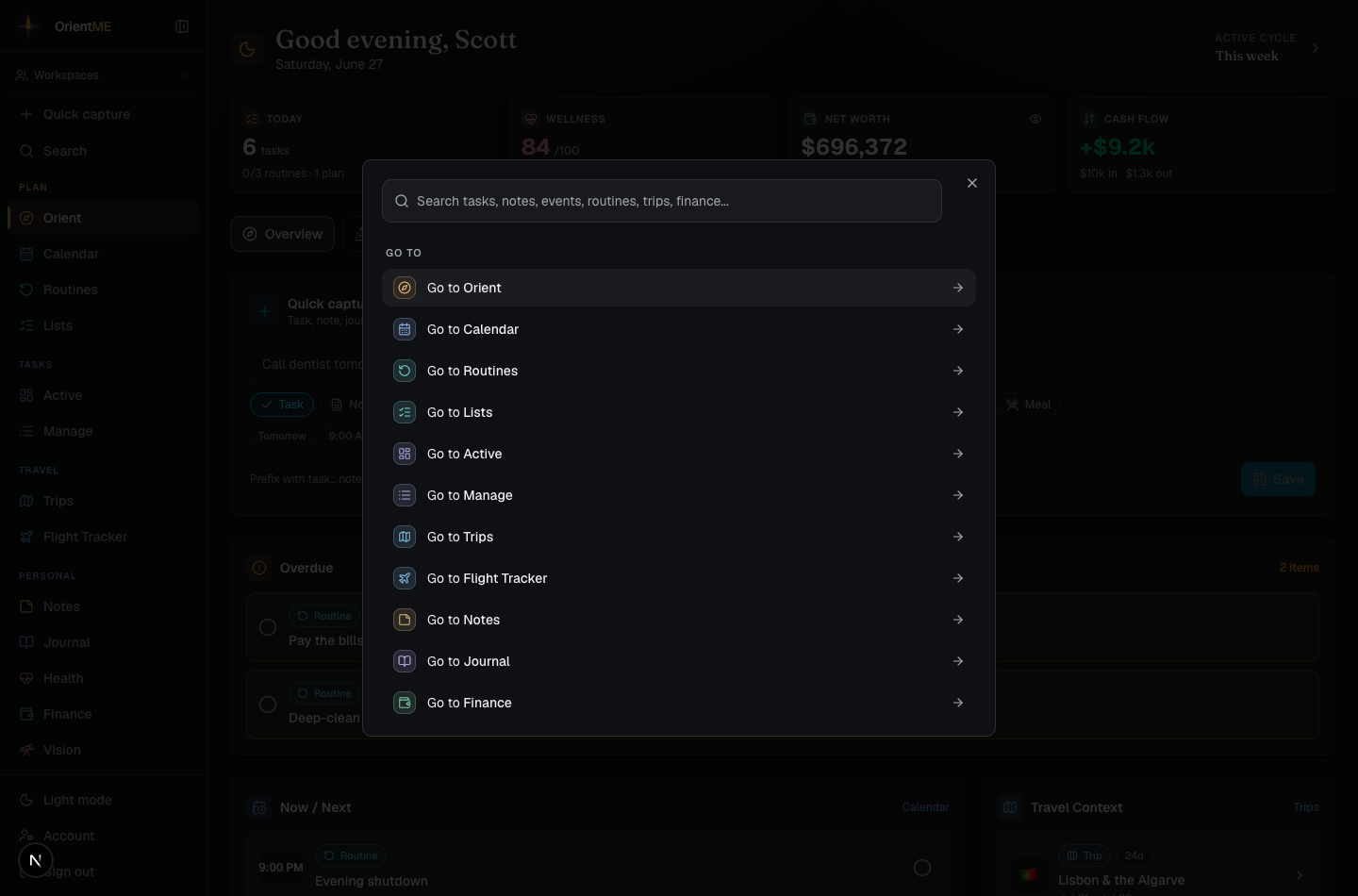
Quick capture creates; Search finds. Press Cmd/Ctrl+K anywhere (when you're not typing) and the palette is useful before you even type:
- Recent — the last few items you opened from search, kept on this device, so jumping back to yesterday's note is one keystroke.
- Go to — a navigation command for every section of the app. Type a couple of letters
(
fin→ Go to Finance,cal→ Go to Calendar) and the commands filter down to match.
Type anything longer and results appear grouped by type (Tasks, Events, Notes, Journal, …) so a busy result list stays scannable. Steer with ↑/↓, press Enter to open the highlighted row, and Esc to close — your hands never leave the keyboard. And when nothing matches, Enter triggers the same Capture hand-off described above, so a missed search becomes a new item without retyping.
On the phone, search lives behind the magnifying glass on the Today tab — and it remembers your recently opened items there too.