Notes & stickies

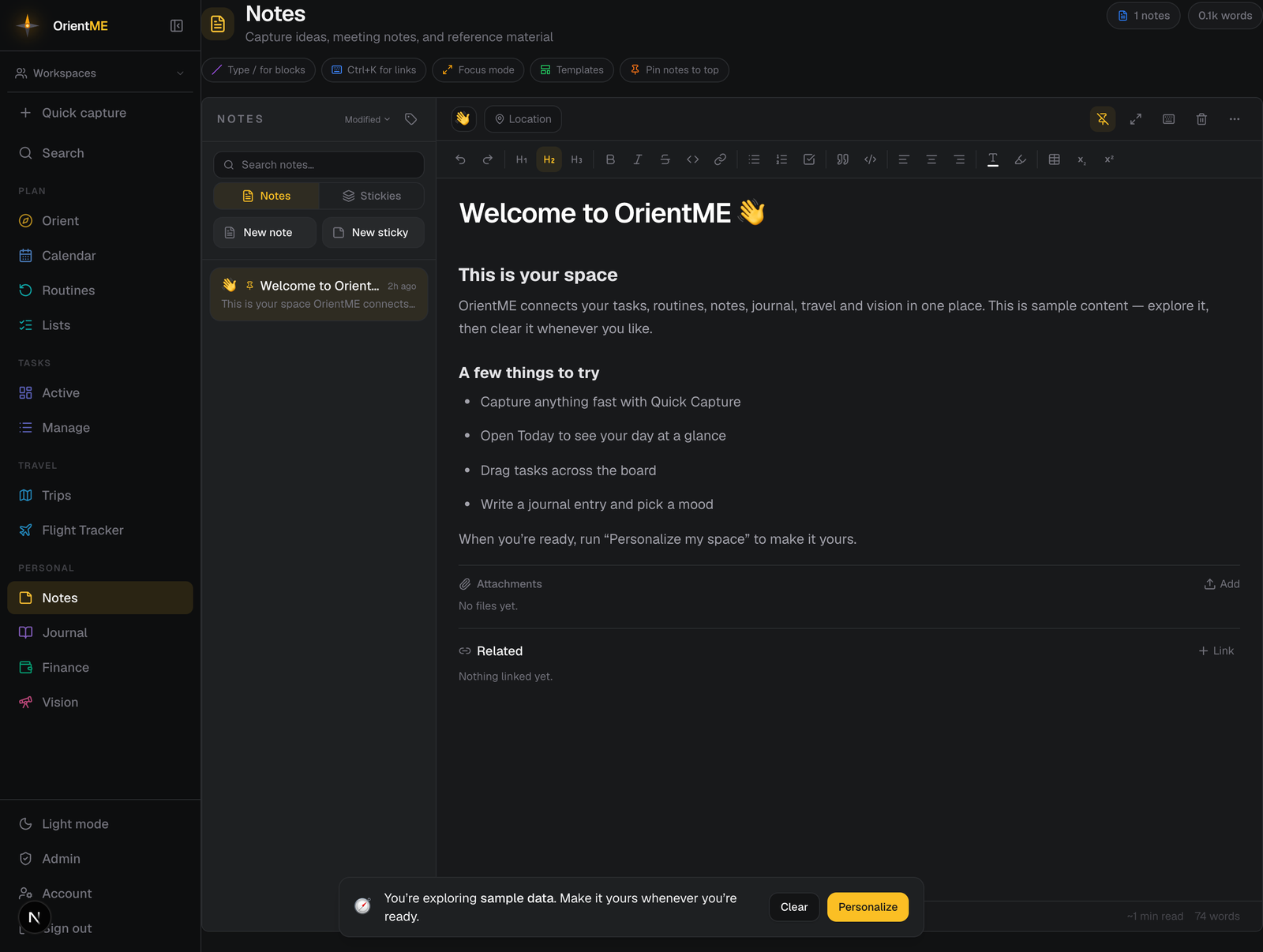
Notes is your notebook in OrientME — meeting notes, reference material, half-formed ideas. It has two modes you switch between at the top of the list: Notes (full document editor) and Stickies (a freeform canvas of sticky notes). You’ll find it under Personal → Notes.
Create a note
Click New note to open the template picker, then choose a starting point:
- Blank note — start from scratch
- Meeting notes — attendees, agenda, notes, and action items
- Project brief — overview, goals, and milestones
- Research notes — topic, findings, and sources
Any templates you’ve saved appear here too. To make one, open a note and choose Save as template from the ⋯ menu.
The editor
The editor is full rich text. The formatting toolbar covers headings, bold, italic, strikethrough, inline code and links, bullet/numbered/task lists, quotes and code blocks, text alignment, text color and highlight, tables, and subscript/superscript.
Press Enter (or ↓) on the title to drop straight into the body. When you paste content copied from another app or website, it keeps its structure (headings, lists, links) but adopts your note’s text color — pasted text never arrives in colors that clash with your theme, and you can recolor it any time from the toolbar palette.
Type / anywhere in a note to open the block menu — headings, lists, quotes, code, a divider, a table, and four callout styles (info, tip, warning, note). Press Ctrl/Cmd+K to add a link — the dialog has an optional Link text field, so you can show a short name like "Booking confirmation" instead of a long raw URL. Leave it blank to keep the selected text, or to show the URL itself.
Each note can carry an icon, a location, a tag, and a pin (to keep it at the top of the list). The ⋯ menu adds duplicate, save as template, copy as Markdown, and print / export PDF — a clean, print-ready copy of the note opens in a new tab with your browser's print dialog, where you can print it or save it as a PDF (allow pop-ups for the site if the tab doesn't appear). On the app the same Print / Export PDF sits in the note's ⋯ menu: it builds the identical document as a PDF and opens the share sheet, so you can save it to Files, mail it, or AirDrop it. A focus mode hides everything but the page. Below the body you can add attachments — drag files in, paste a screenshot, or pick several at once — and related items (see Related items).
Notes save automatically as you type — there’s no save button. The footer shows your word count and estimated reading time.
Smart columns in tables
A table column can do a little math for you — without turning your note into a spreadsheet. Click
into any table cell and you’ll see a small ƒ button on each column header — click it (or type
/ and choose Computed column, or open the toolbar Table menu and choose Make column
computed…) to set one up. Pick one operation and a source column:
- Convert currency — show a price from one currency in another, using up-to-date exchange rates. Great for a travel budget: keep prices in euros in one column and see US dollars in the next. Dozens of currencies are supported.
- Multiply / divide / add / subtract a fixed number — e.g. add a markup, apply a quantity, or convert units.
- Add or subtract a percent — e.g. add sales tax or take off a discount.
For the math operations you can choose how many decimals to show, and whether to format the result as a plain number or as currency in the currency you pick.
The computed column’s cells become read-only and fill in automatically — change a number in the
source column and the result updates instantly. The column header shows a small badge of what it’s
doing (like EUR→USD or × 1.08). To change or remove it, click the ƒ again or use Edit
computed column… / Remove computed column in the Table menu.
Add a totals row. From the Table menu (or / → Totals row) choose Add totals row to
drop a footer that sums each numeric column — and a money column totals in its own currency. It’s
read-only and updates as you edit. Choose Remove totals row to take it away.
On mobile, tap the calculator button in the editor toolbar (inside a table) to set up a computed column, and use the Table button’s sheet to add or remove the totals row.
This is intentionally simple — one source column and one operation per computed column. There are no formulas or cell references to learn. Need two steps? Make two computed columns.
Organize with tags and search
Tag notes for grouping (manage colors in the tags panel), filter the list by tag, sort by modified/created/A–Z, and search across titles and body text. List rows show a short content snippet so you can recognize a note at a glance.
Stickies
Switch to Stickies for a visual board of quick notes — reminders, ideas, scraps you’ll deal with later. Add a sticky, then drag it to position and drag its corner to resize.
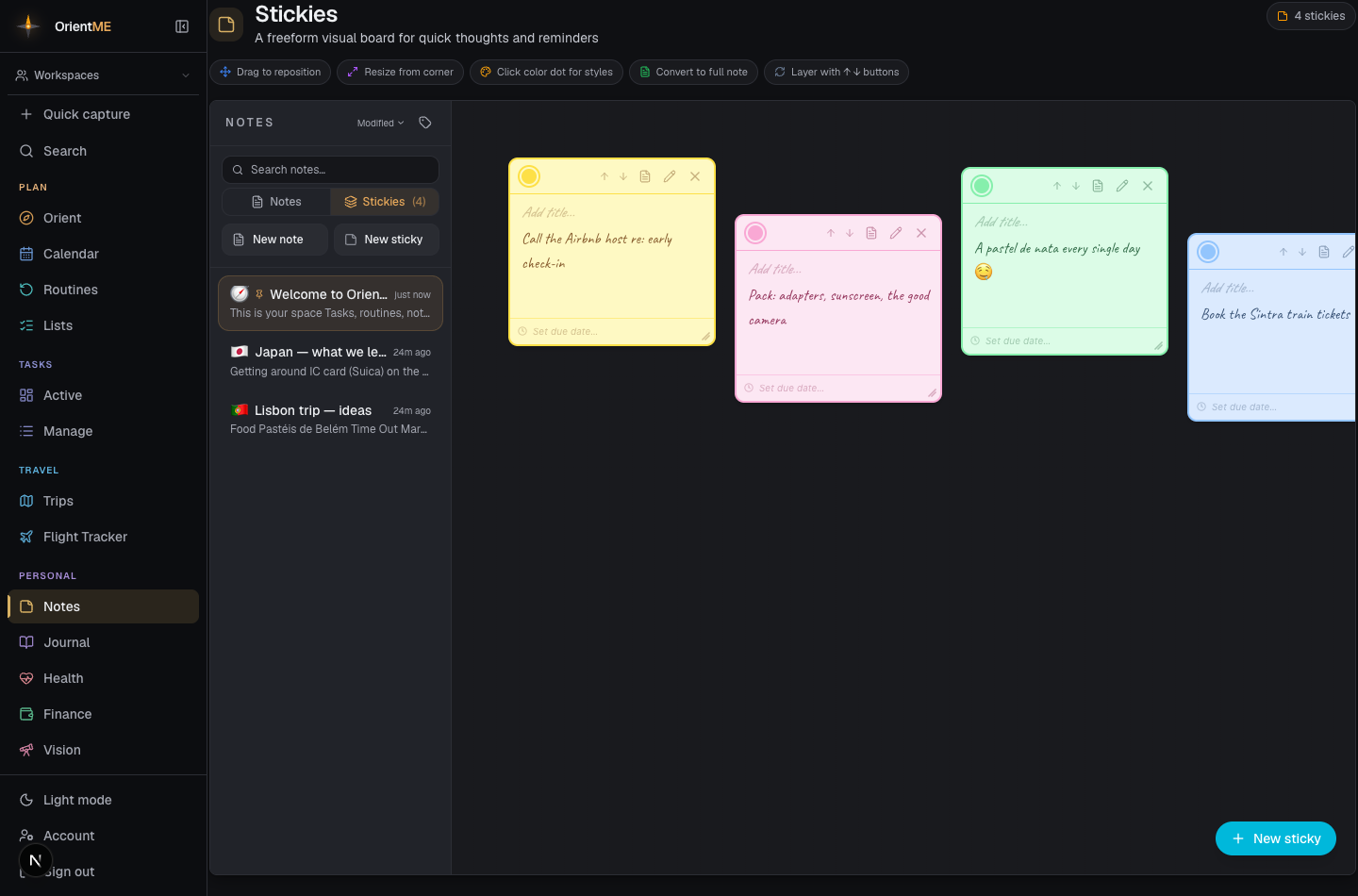
Click a sticky’s color dot to style it — color, handwriting-style font, size, an optional due date, and a tag. You can layer stickies front-to-back, and convert any sticky into a full note when it outgrows the canvas. Stickies autosave too.
On the phone, a sticky opens as its own colored card: pick the color, set the due date (and an optional time), and type the title and text. A dated sticky surfaces on Today as a reminder on both platforms. Stickies written on your phone keep their line breaks when you view or edit them on the web, and a sticky written on the web reads as plain text lines on your phone.
Deleting a sticky that has no reminder date asks whether you'd rather keep it: choose Delete to remove it, or Remind me instead (Remind me first on the phone) to keep the sticky and set its reminder for tomorrow — it resurfaces on your Today page instead of disappearing. A sticky that already has a reminder date deletes with a simple confirmation.
Your wall also shows up on Today as a Sticky notes card — mini stickies in their real colors, dated ones first. Tap Remind me… on any of them to set a reminder right from the dashboard (Today, Tomorrow, or a picked date and time): the sticky lands on your calendar, pings your phone at the right moment, and moves to Overdue if the day slips past. Completing the reminder keeps the sticky — only the date clears.
Reading linked notes
When a note is linked from somewhere else — a routine’s reference note, a trip, a task — clicking it opens a quick read-only pop-up with an Open in Notes button, so you can read without losing your place.