Health

Health is one private place for your whole picture of wellbeing: workouts, nutrition, body measurements and bloodwork, sleep and mind, supplements, and the people you connect with. You’ll find it under Personal → Health.
It’s designed to feel like a calm instrument panel, not a game — no streaks, no points, just a clear read on how you’re doing. Everything here is private to you.
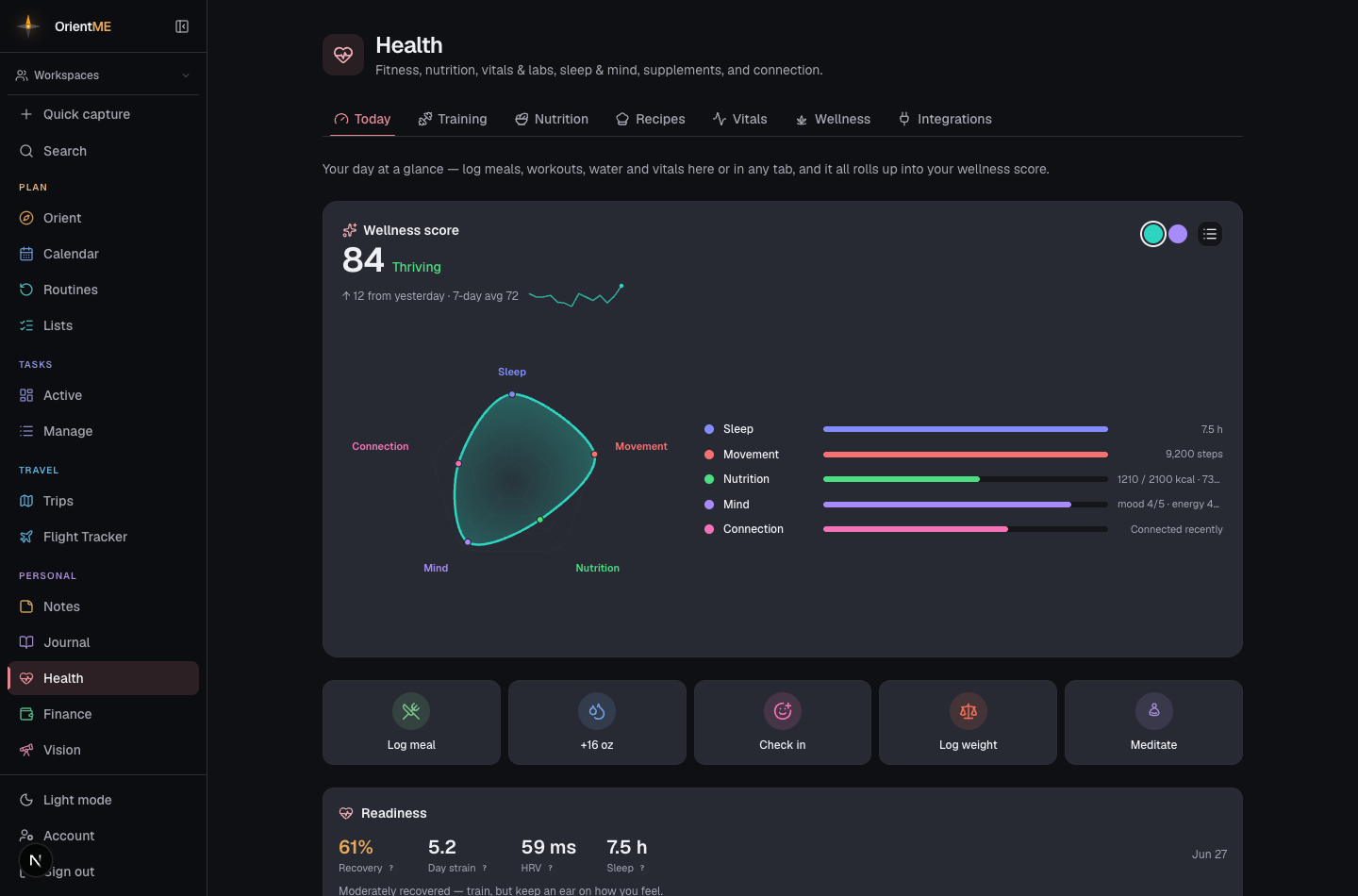
The area is organized into these tabs:
| Tab | What’s there |
|---|---|
| Today | Your daily snapshot and an overall wellness score |
| Training | Workout logger, exercise library, personal records, and progress charts |
| Nutrition | Your daily food log: meals, macros, and hydration |
| Recipes | Your recipe library — browse, create, import, and log meals from saved recipes |
| Vitals | Body measurements, progress photos, and lab panels with trends |
| Wellness | A weekly summary, daily check-in, reflection & journaling, meditation and focus timers, supplements, and connection |
Health is woven into the rest of the app. Log your weight, water, or a meal straight from
Quick capture (weight: 84.2, water 500, ate: …); see your workouts
on the Calendar alongside everything else you've planned; and find any
workout, recipe, exercise, or lab panel from the global search (⌘K / Ctrl+K).
US or metric — your choice. In your account settings, under Units & measurements, pick Imperial (US) or Metric. US is the default. Your choice changes how weight, body measurements, and water are shown and entered across Health — pounds, inches, and fluid ounces, or kilograms, centimetres, and millilitres — and switches instantly without touching anything you’ve already logged.
Catch up on missed days
Life happens and a few days go unlogged. When the Today tab notices gaps in the last week — in things you actually track — a quiet Catch up card appears: "N missing entries this week — fill in what you remember, skip the rest."
Fill them in walks you through one day at a time, showing only what's missing:
- Meals — copy a whole previous day in one tap, or tap recent meals to re-log them.
- Water — call the day with one tap: Light day, About right, or Big day.
- Sleep — set the hours with a stepper, starting from your usual night.
Everything you enter is a real log — exactly as if you'd logged it on the day — so your wellness score, trends, and charts fill in honestly. Skip anything you don't remember: skipped days simply stay unlogged, and the card only appears while there's something to catch up on.
Eat the same things most days? The Evening Shutdown's Log the body move has a meals row too — Same as yesterday logs your usual day of food in one tap while you close out the evening.
Your wellness score
The Today tab opens with a wellness score — one number from 0 to 100 that blends how your day is going across six areas: sleep, movement, nutrition, mind, consistency, and connection. Sleep, movement, and nutrition carry the most weight.
It’s shown as a radar — a single shape whose outline pushes outward in the areas you’re doing well and pulls inward where you’re falling short. A well-rounded day looks full and even; a lopsided day visibly leans toward whatever you’ve kept up. The areas you haven’t logged yet pull toward the center. Your overall number for the day sits just above the chart, and you can hover a point to see that area’s exact score.
You can tailor the look: pick a teal or violet accent with the two color dots in the corner, and use the list button to show or hide the detailed breakdown beside the chart. Your choices are remembered.
The score only counts the things you actually track. If you never log water, hydration simply doesn’t pull your score down — it just won’t be part of your radar that day. Nothing here punishes you for a feature you don’t use.
Nutrition is about what you eat. Water is a small part of it — staying hydrated helps, but logging a glass of water on its own won’t make your nutrition look great. Log meals to move that area.
Under the ring is a quick-log strip — Log meal, +500 ml water, Check in, Add reading, Meditate — so the most common entries are one tap away. Tapping the water button logs it instantly and shows a toast with your new running total for the day — tap Undo if it was an accident.
Add reading opens a quick board of the readings you actually take by hand — weight, blood pressure, resting heart rate, body fat, body temperature, and sleep — each showing your last value so confirming today's is a single tap. Need something else? More metrics opens the full list; readings your wearable normally provides (recovery, HRV, blood oxygen, sleep stages…) are marked synced there, since those come from your band — though you can still type one in by hand if you want. Anything you log by hand always wins over a synced value for that day.
Below that you’ll see today’s nutrition — including how much water you’ve had so far — plus training, supplements due, and any upcoming health appointments from your calendar. Tap a workout in Today's training to open it — a planned session opens straight to its Complete session button, so finishing today's workout never means hunting through the Training tab.
Patterns & trends
Your wellness score also shows how today compares — whether it’s up or down from yesterday, how it sits against your 7-day average, and a small trend line so you can see which way things are heading.
A Patterns card surfaces calm observations from your recent logs — for example, “on days you sleep more, your mood tends to run higher,” or “short sleep on 4 of the last 7 nights.” They’re observations, never pressure and never streaks, and they only appear once you’ve logged enough for a pattern to be worth pointing out.
Readiness
If you connect a wearable, a Readiness card joins your Today snapshot with a quick read on how your body is doing — your recovery, day strain, HRV, and last night’s sleep — topped by a one-line take such as “Well recovered — a good day to push.” It’s there as a signal to guide your day, not part of your wellness score, so a rough night never quietly drags your number down.
Every vital now comes with a short, plain-language explanation of what it is and what’s healthy. Tap a metric — or the ? beside it — to read what it means.
Connecting a wearable. From the Integrations area you can connect a WHOOP band or an Oura Ring. Oura pulls your sleep, readiness, HRV, resting heart rate, and SpO₂ into your dashboard and backfills about three months of history when you first connect, so your trends start out full rather than empty.
Anything you log by hand always takes precedence over synced values — connecting a wearable fills in the gaps, it never overwrites a reading you entered yourself. The reverse is just as safe: entering a value by hand (say, sleep hours in the daily check-in) overrides the synced number for that day without deleting it, so your wearable's history stays intact.
Goals
On Today, set a measurable goal — a target weight, a lift number, or a habit — and OrientME tracks the progress bar for you against your logged metrics and personal records.
The daily Health loop is in the mobile app too — open Personal → Health for your wellness score, quick water/weight logging, the daily check-in, the nutrition log, the Readiness card, and the full meditation timer (chimes, interval bells, wind-down cues, and ambient sound — with a notification when your sit completes if the screen locks). Once you start logging, a Wellness tile joins the app's Today tab with your score and anything still due — tap it to jump into Health, or straight into the check-in when you haven't logged yet — and your workouts and recipes show up in the app's search. A Training area is in the app too: your workout log, your templates (duplicate a standard split in a tap), the planner with the same one-tap ✓ complete and session summary as the web, and live workout sessions — start one with Log workout, Repeat last, a template's Start, or by tapping a planned session, and the app guides you set by set with big weight and reps controls pre-filled from last time, a rest timer that chimes with your meditation bell, supersets flowing back-to-back with no rest, and drop sets starting immediately. The full workout editor is there too for adjusting logged sessions and building templates — last-time numbers ghosted into each set, Fill from last, exercise swap with revert, supersets, and set-type badges, all in your units. Recipes are on the app now too — the full library with filter chips, recipe details and the How to make steps, Estimate from catalog when you build one, the Quick meal logger, and Plan & shop. The rest (vitals, labs, wearable connections, and importing a recipe from a link or photo) are on the web for now and are coming to the app area by area.