Calendar

The Calendar brings everything you're committed to onto one timeline: tasks, routines, plan items, events, trip days, flights, stays, sticky-note due dates, and Health workouts. It’s the cross-section view — where Orient is about today, the calendar is about when.
Things you record after the fact — journal entries and logged meals — stay on their own pages and don’t appear as calendar entries. They have no time to keep, nothing to reschedule, and a day of them would push the things you actually planned off the screen. The calendar header still tells you at a glance whether you’ve journaled today.
Views
The toggle in the calendar header switches between Agenda, Week, Month, and Events:
- Agenda — a day-by-day list of the next 30 days, each item tagged with its source. Routines have a circle you can tap to mark them done right from the list.
- Week — a time-gridded week for a closer look at timed items, with each block sized to its duration and overlapping items packed side by side.
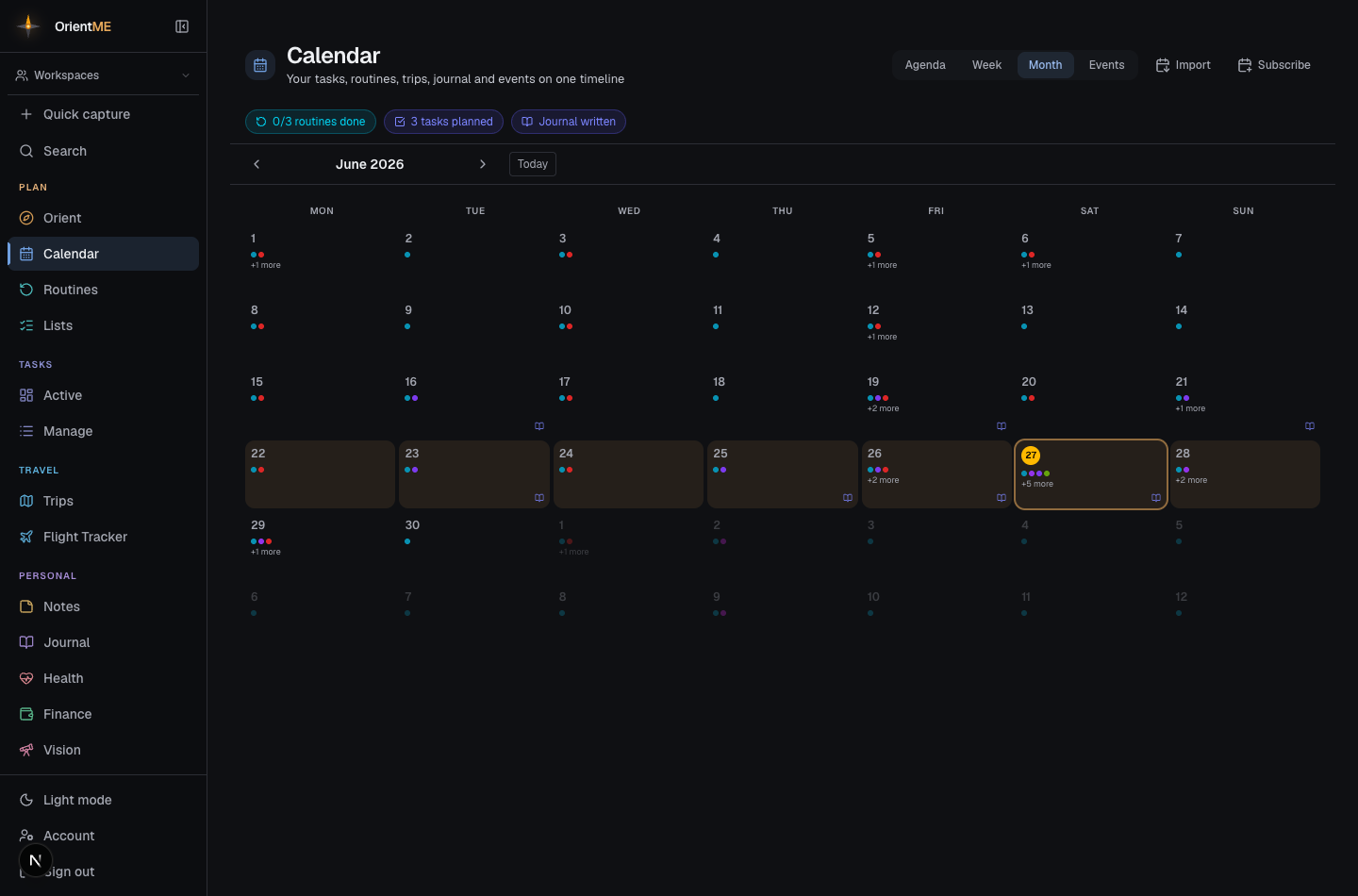
- Month — a full month grid with colored dots and icons marking what’s on each day.
- Events — the dated occasions you’re attending: concerts, games, dinners, appointments, birthdays, anniversaries. This is the one source you can add and edit right here — everything else on the calendar is a read-only reflection of where it lives. See Events for how to create and manage them.
Use the ‹ › arrows to move between weeks or months, and Today to jump back. (Agenda always shows the next 30 days, so it has no period controls.)
A today strip along the top gives you the day at a glance: routines done, tasks done vs. planned, your active trip, and whether you’ve journaled yet.
On mobile, opening the calendar shows the current week and scrolls straight to today, so the day you care about sits near the top without scrolling. Tap any day — a chip in the week strip or a day’s header in the agenda — to open its day view, laid out like the calendar apps you’re used to: all-day items sit at the top, and below them an hour-by-hour grid places each item at its time, sized to its duration, with overlapping items side by side. On today, an amber line marks now, and the view opens scrolled to the right part of the day. Swipe left or right (or use the ‹ › arrows) to move between days, and tap a block to check off a routine or open a task, trip, or event.
Reschedule by dragging
In month view, drag a task from one day to another to reschedule it — you’ll see a Moved to [day] confirmation. Cycle days are gently tinted so you can see your active cycle at a glance.
You can also change times without opening anything: in week view, grab a task or event block and slide it up or down — it snaps to 15-minute steps, shows the new time as you drag, and saves when you let go (an event keeps its length; only its start moves). On mobile, do the same in the day view: press and hold a block until it lifts (you'll feel a tap), then slide it to its new time. Items whose times come from somewhere else — routines, flights, workouts — can't be dragged; open them instead.
The day drawer
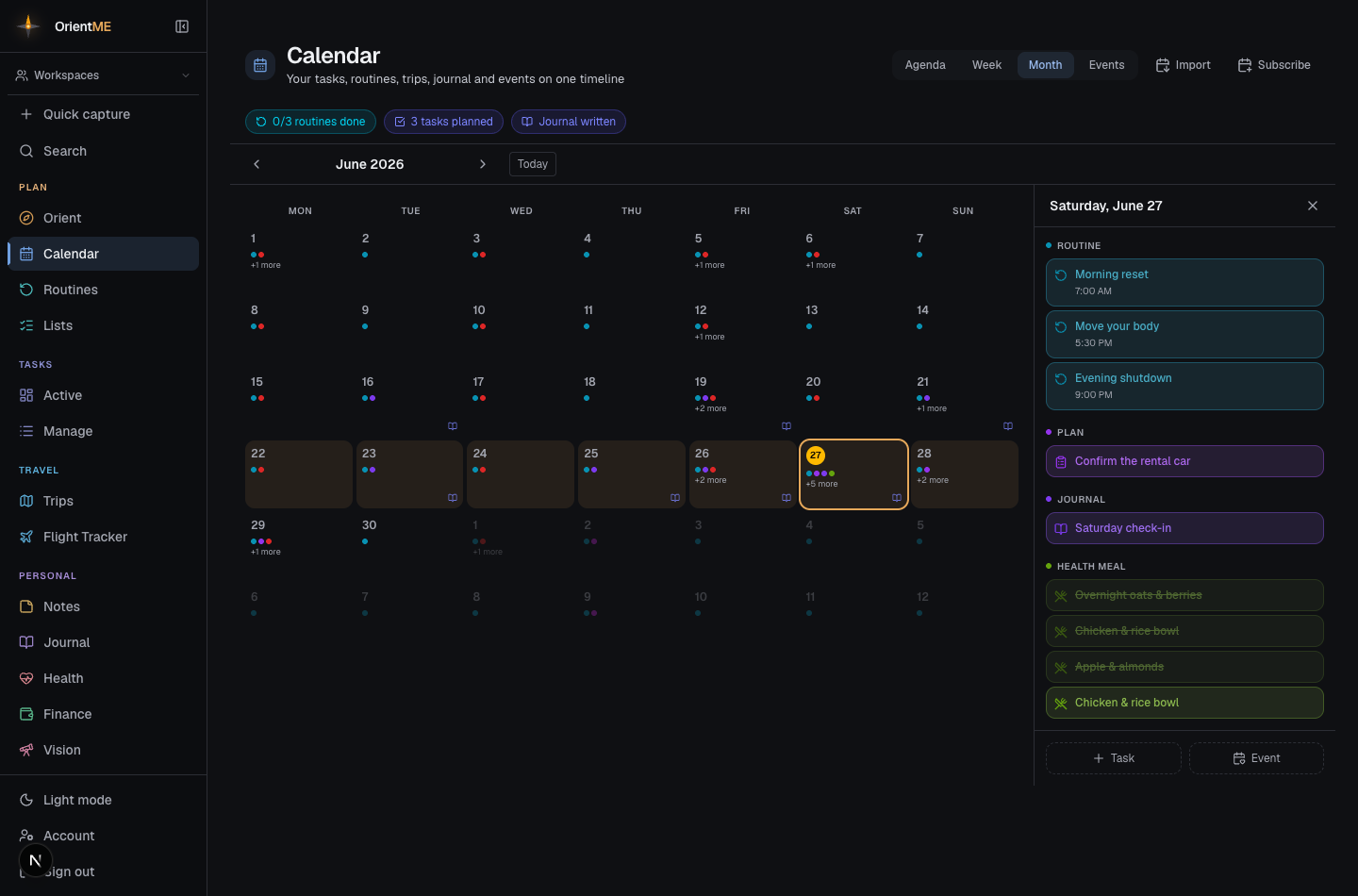
Click any day in Month view to open a drawer that groups everything happening that day by source — events, tasks, routines, plan items, trip days/flights/stays/activities, notes, and your Health workouts, plus any imported calendars. At the bottom, two quick-add buttons let you add to that day without leaving the drawer: Task opens Quick capture with the date pre-filled, and Event opens the event editor for a new occasion on that date.
Subscribe from Google, Apple, or Outlook
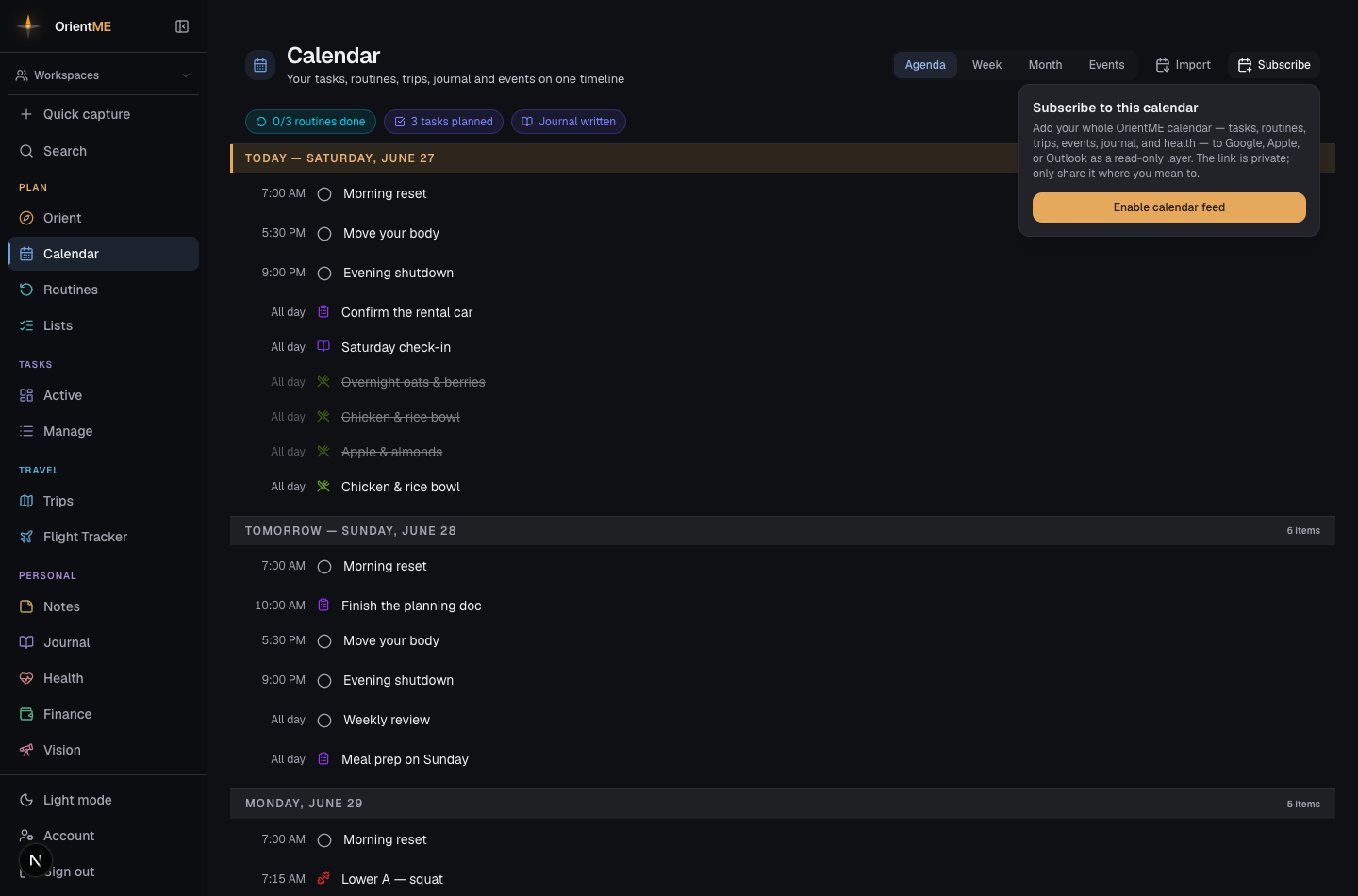
You can view your whole OrientME calendar inside the calendar app you already use. Click Subscribe in the calendar header (next to Import) and choose Enable calendar feed — or do the same from Account → Calendar subscription. You’ll get a private subscription link with a Copy button, plus one-tap Google and Apple buttons that open those apps with the feed ready to add (on mobile, open Account → Calendar subscription, where Subscribe opens your calendar app and Share link sends it anywhere). For Outlook or any other app, copy the link and paste it into that app’s “subscribe by URL” option.
The feed includes everything on your calendar — tasks, routines, plan items, trip days, flights, stays, events, sticky-note due dates, reminders, and workouts — as a read-only layer alongside your other calendars. That includes things other people have shared with you through a workspace: a trip or routine someone shares with you shows up in your subscribed Google or Apple calendar too, just like it does in the app. A recurring occasion — a birthday or anniversary you set to repeat — lands on each date it recurs, not just the first one.
Entries carry their details across, not just a title. A plan or list item arrives with its note and a link straight back to the list it lives in — click it in Google or Apple and you land on that list in OrientME with the item highlighted. An event brings its location and notes, so the address is right there when you tap it.
The link is private — anyone who has it can see your calendar, so only share it where you mean to. If a link ever gets out, use Generate new link to replace it (the old one stops working), or Turn off to switch the feed off entirely.
Something showing up that you already changed or deleted?
Google, Apple, and Outlook keep their own cached copy of a subscribed calendar and refresh it on their schedule — which can lag by a day or more. An entry only disappears from their copy once they re-check the link and find it gone.
So if you moved an item to a different date, or deleted it entirely, the old version can sit in Google for a while at its original date. It'll look like a normal entry, but opening it won't lead anywhere useful — because the thing it came from isn't there any more.
To clear it out: open the subscription panel, choose Generate new link, and re-add that new link in Google, Apple, or Outlook. Removing the old subscription and adding the fresh one is what forces a clean re-read. (OrientME itself is always right — check the item in the app to see its real date.)
Reminders
OrientME can nudge you before things happen — a heads-up before a meeting, a runway before a flight, a morning-of ping for a task that's due. You choose exactly what reminds you and how far ahead in Account → Reminders.
Each kind of calendar entry has its own switch and a "when" setting:
- Calendar events — 10 minutes before (on by default)
- Scheduled tasks — 15 minutes before, and a 9 AM heads-up for tasks that have a date but no time
- Routines — right at their scheduled time
- Flights — 2 hours before departure
- Trip plans (activities and transport) — 30 minutes before
- Plan & list items and Sticky note due dates — before timed ones, 9 AM for date-only ones
- Workouts — off by default; turn it on if you schedule sessions for a set time
Flip any of these on or off, change the lead time, or hit Reset to defaults to go back to the suggested set. Ambient stretches of a day — trip day bands and hotel stays — are never reminded, and anything you've already completed won't ping you.
These settings drive reminders in two places at once, so they always agree:
- In the OrientME app on your phone — real notifications, straight from the app. This is the reliable channel and doesn't require subscribing to anything.
- In a calendar you subscribed to (Google, Apple, Outlook) — the feed carries matching alarms. Whether they fire depends on that app: Apple Calendar honors them (turn on Remove Alerts for the subscription if you'd rather it didn't); Google Calendar ignores alarms from subscribed feeds, so there you'd add your own default notifications under Settings for other calendars.
Subscribed calendars are read-only and refresh on the other app’s own schedule — usually within a few hours, not instantly. So a brand-new task, or something a workspace member just shared with you, may take a little while to appear in Google or Apple Calendar, and a reminder for something starting minutes from now may not reach that app in time. The OrientME app's own notifications don't have that lag.
Bring another calendar in
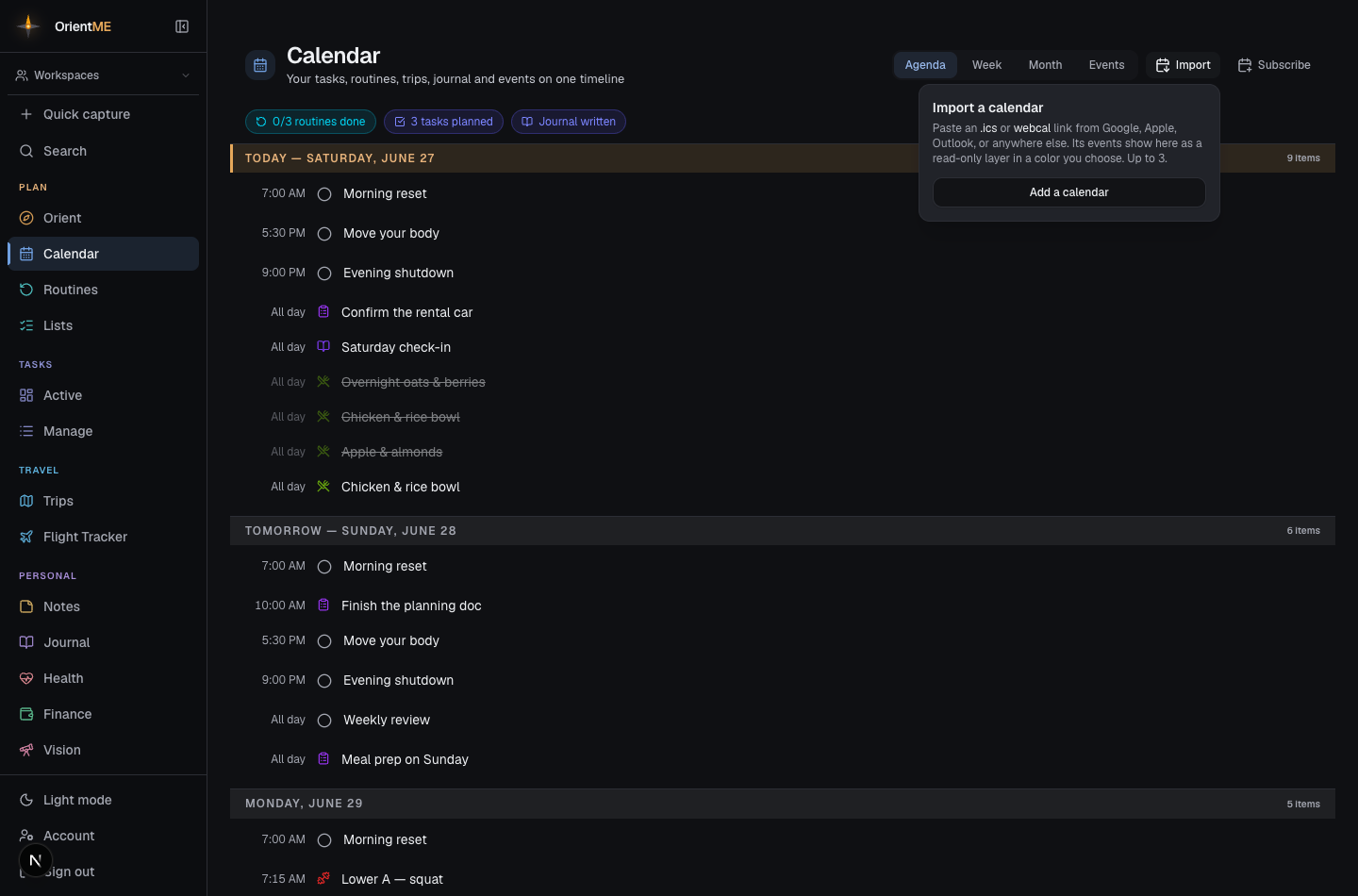
You can also go the other way — pull a calendar you keep elsewhere into OrientME so it shows up alongside everything else. Click Import at the top of the Calendar (right next to Subscribe), choose Add a calendar, give it a name, paste its .ics or webcal link, pick a color, and add it — its events appear on the calendar behind the popover right away. The same controls live in Account → Imported calendars if you prefer to manage them there. Either way, imported events show on your Calendar as a read-only layer in the color you chose, on both web and mobile.
Not sure where your link is? The add form has a “Where do I find my calendar’s link?” helper that spells out the steps for each app:
- Google Calendar — On a computer: Settings → the calendar (under “Settings for my calendars”) → Integrate calendar → Secret address in iCal format.
- Apple iCloud — Share the calendar as a Public Calendar and copy its
webcal://link. - Outlook — Calendar settings → Shared calendars → Publish → copy the ICS link.
- Plus any sports schedule, team, or service that offers an
.ics/“subscribe” link.
You can add up to three. Imported calendars are read-only — you can recolor or remove them, but their events are edited wherever they live, not in OrientME. They refresh on their own; opening your Calendar checks for updates.
That means the link you pasted needs a login, so OrientME can’t read it. In Google Calendar this
almost always means you copied the Public address for a calendar that isn’t shared publicly — use
the Secret address in iCal format instead (it’s in the same Integrate calendar section). Don’t
paste the “Add to Google Calendar” / shareable link (it contains ?cid=) or the address you see
in your browser’s address bar while viewing Google Calendar — those open the Google Calendar website,
they aren’t a calendar feed. A real feed ends in .ics. If you copied a secret link a while ago and
it stopped working, the provider may have reset it; just copy a fresh one.
Imported events are just shown, not copied — they’re never included in the calendar you publish with the subscription link above, and they don’t change anything in your OrientME data.
Everything links back
Clicking an item takes you to wherever it lives: tasks open their detail view, routines open Routines, trip events open the itinerary, notes open Notes, and a workout opens the Training tab in Health. A plan or list item opens the list it belongs to, scrolled to that exact item and highlighted — an untimed checklist opens in Lists, a week/month/year plan on the Plans tab of Routines. If the item is already ticked off, the Done section it's tucked into opens with it. On the phone, tapping the row still ticks it off; use the › at the right of the row to jump to its list instead. A flight goes one better: it opens the trip's Logistics tab with that exact flight highlighted (and expanded, on mobile), so you land on the flight itself — stays and transport land on Logistics too. Events are the exception — they open right here in the event editor, so you can edit them in place. The calendar is a map of your data, not a separate copy of it.