Cycles

A cycle is a focused block of work — a week, a sprint, whatever rhythm suits you. The tasks in your active cycle appear on the board; everything else waits in the queue or in a planned cycle until you’re ready. Only one cycle is active at a time, which keeps the board honest about what you’re actually doing now.
You manage cycles under Tasks → Manage → Cycles.
No active cycle yet? The Tasks board shows a Start your first cycle card explaining what a cycle is, with a button that opens Start a cycle — name it, pick a start date, choose a length (1 week, 2 weeks, 3 weeks, or 1 month), and your board is ready.
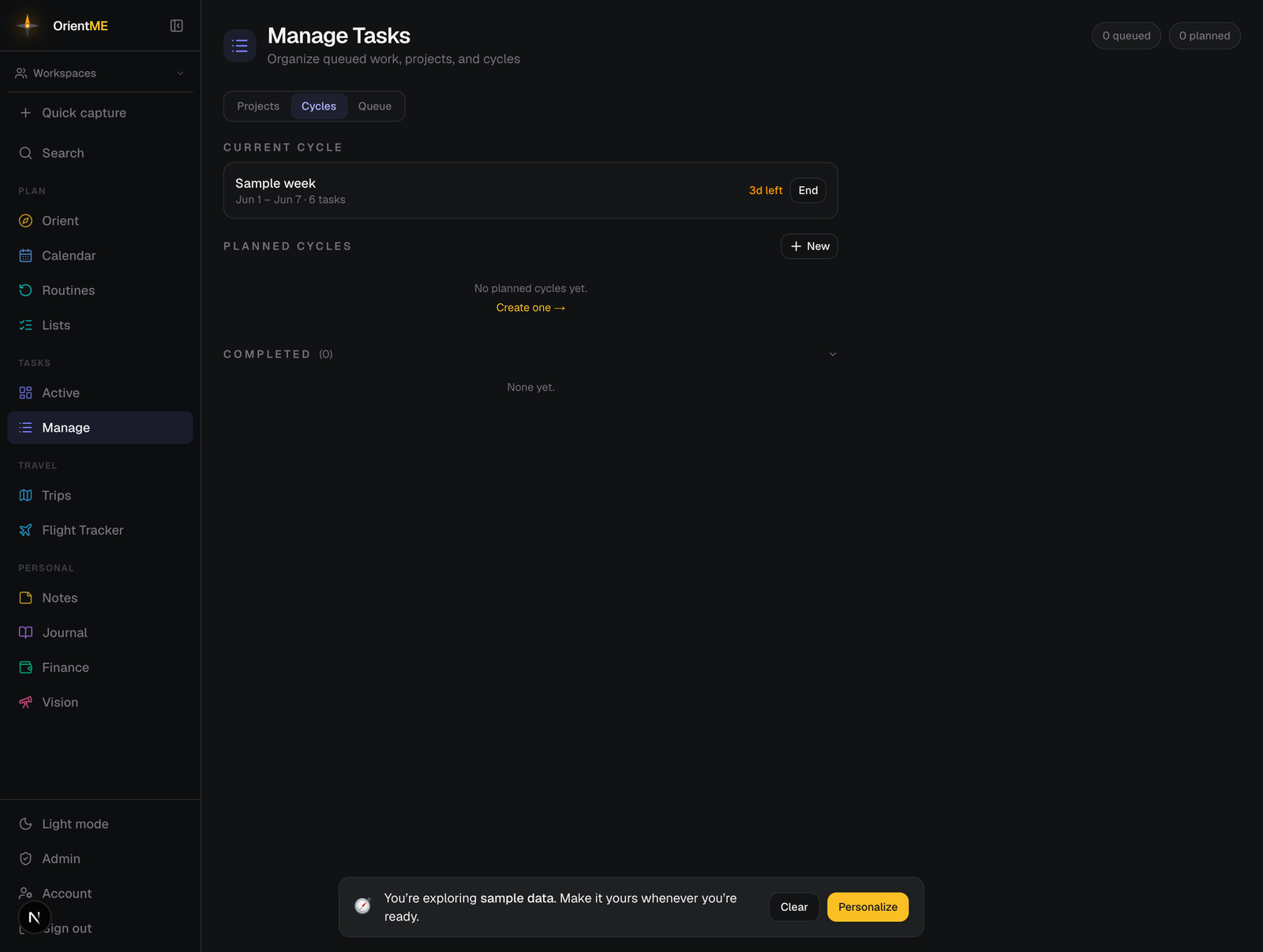
The three groups
- Current cycle — the one you’re working from now, with its date range, task count, and a status chip (for example “5d left”, or “Overdue” in red). Its End button starts the end-of-cycle flow.
- Planned cycles — upcoming cycles you’ve set up in advance. Each has a chevron to view its tasks, and — when no cycle is active — a Go button to activate it.
- Completed — a collapsible history of finished cycles, each showing a finished/total count like 7/9.
Create a planned cycle
- On the Cycles tab, click New.
- In New planned cycle, enter a cycle name (for example “Week of June 9”), a start date, and an end date.
- Click Create cycle.
Cycles can’t overlap, and the end date must be after the start date. If they conflict, OrientME tells you which cycle is in the way so you can adjust the dates.
Activate a cycle
When there’s no active cycle, click Go on a planned cycle to make it the board you’re working from. (A new cycle also becomes active automatically when you end the current one — see below.) To edit a planned cycle’s name or dates first, open it with its chevron and click the pencil.
End a cycle
Click End cycle on the board header (or End on the current-cycle card). This opens a guided review → recap flow.
Review — OrientME summarizes what’s finished and what isn’t, and for each unfinished task you choose what happens:
| Choice | Result |
|---|---|
| Carry forward (default) | The task moves into the next active cycle |
| Drop to queue | The task returns to the queue for later |
A running tally at the top shows how many tasks will be finished, carried forward, and dropped to queue. Anything you haven’t touched in three or more days gets a Stale flag and a gentle nudge to consider dropping it — your call, never automatic.
You can jot two optional reflections — what went well and what to change — and pick the next cycle (an existing planned one, or a brand-new cycle created with the same duration).
Recap — after ending, you get a calm wrap-up: how much you completed (with a completion percentage), what carried over, what dropped, your notes, and which cycle is now active. Click Start [next cycle] to jump in.
Use the queue as a capture bucket all week. When you end a cycle, carry forward only the work you genuinely intend to keep — drop the rest so the next board starts clean.
How tasks flow
Queue  →  Planned cycle  →  Active cycle (board)  →  Finished
  ↑                                   │
  └────────  drop to queue  ◄─────────┘  (when a cycle ends)
A task with no cycle is in the queue. Assign it to a cycle to plan it; activate that cycle to bring it onto the board; finish it there — one click of the card’s check, or a drag to Finished. Anything unfinished when the cycle ends either carries forward or drops back to the queue — your call, every time.