Recipes
The Recipes tab is your recipe library — the place to browse, create, and import the recipes you cook, separate from the day-to-day food log on Nutrition.
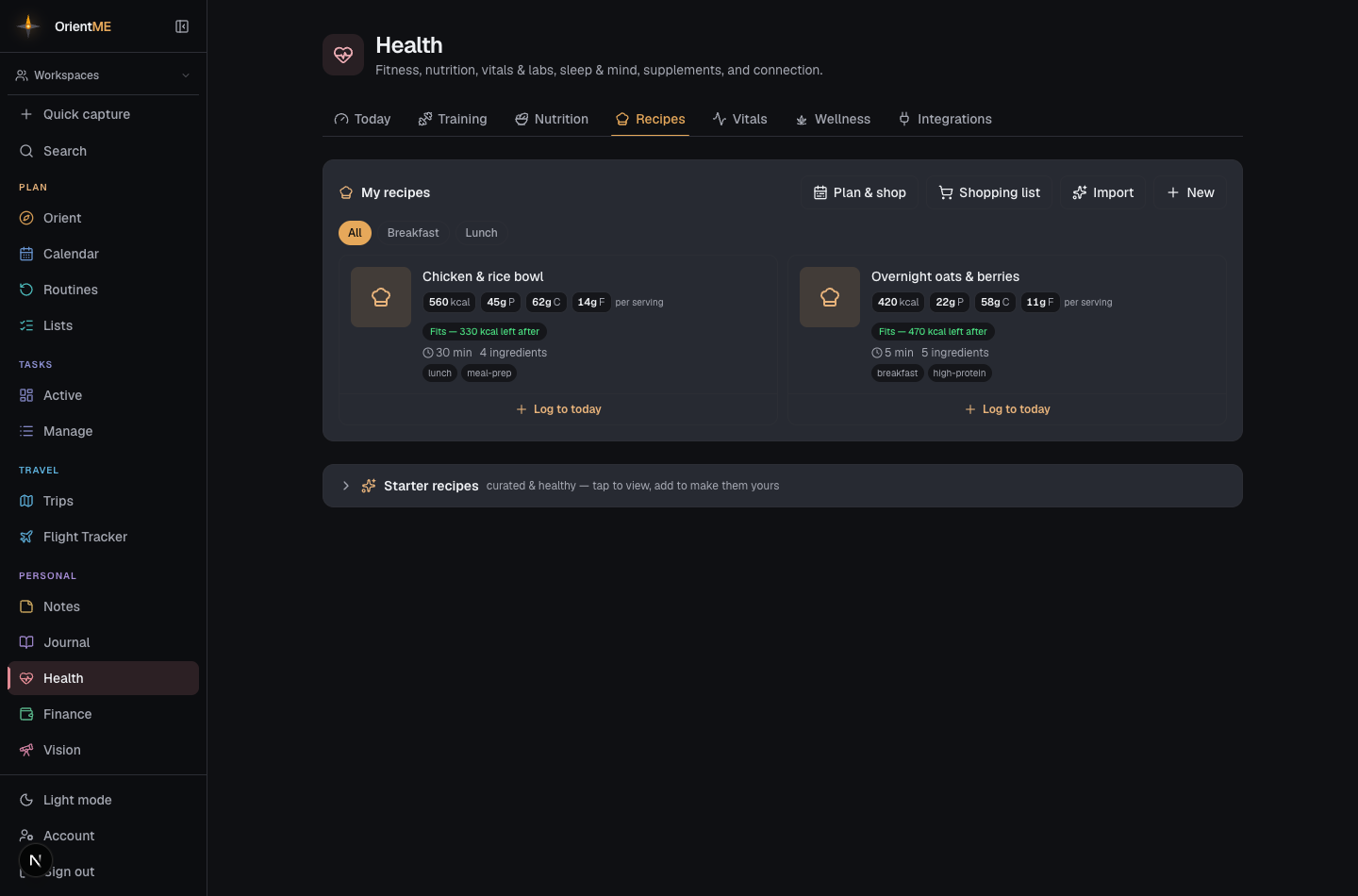
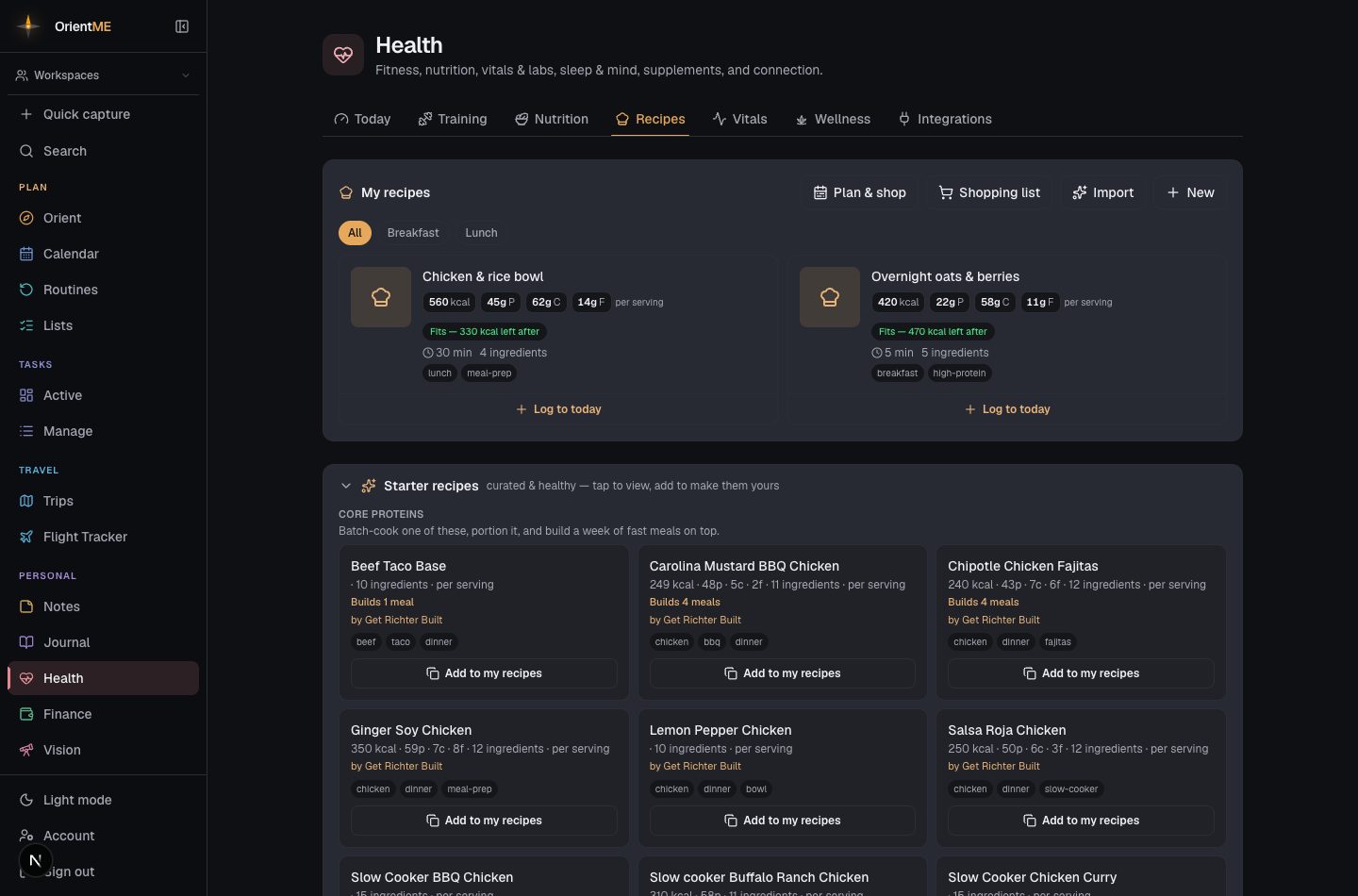
Each recipe card is built to help you decide, not just identify: it shows the calories and the protein / carbs / fat as four clear pills, the time and ingredient count, and any tags. If you’ve set a daily macro target, the card also shows a “Fits — N kcal left after” chip (or “Over by N kcal”) so you can see whether a recipe fits the rest of your day before you log it. Every card has a Log to today button, and hovering a card reveals a delete control to remove a recipe you no longer want.
If your library grows past a single meal, filter chips (Breakfast / Lunch / Dinner / Snack) appear above the grid so you can narrow to just what you’re after.
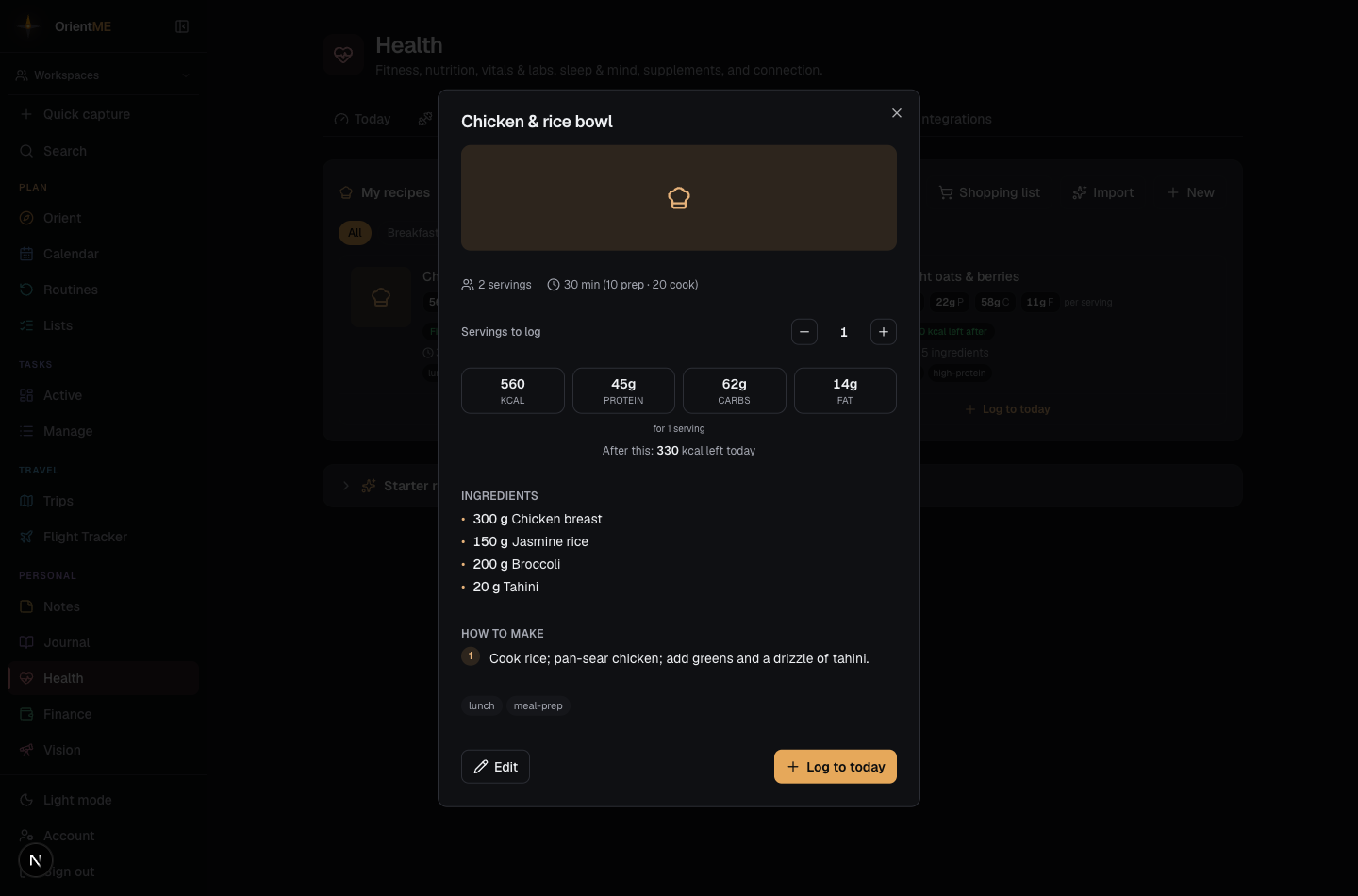
Tap a card to open its full details: the photo, total time, the per-serving macros, ingredients, method, and tags. A servings stepper at the top lets you dial in how many servings you’re eating — the macros update live and an “After this: X kcal left today” line shows the effect on your target. Log to today then records exactly that many servings. You can also Edit the recipe from here.
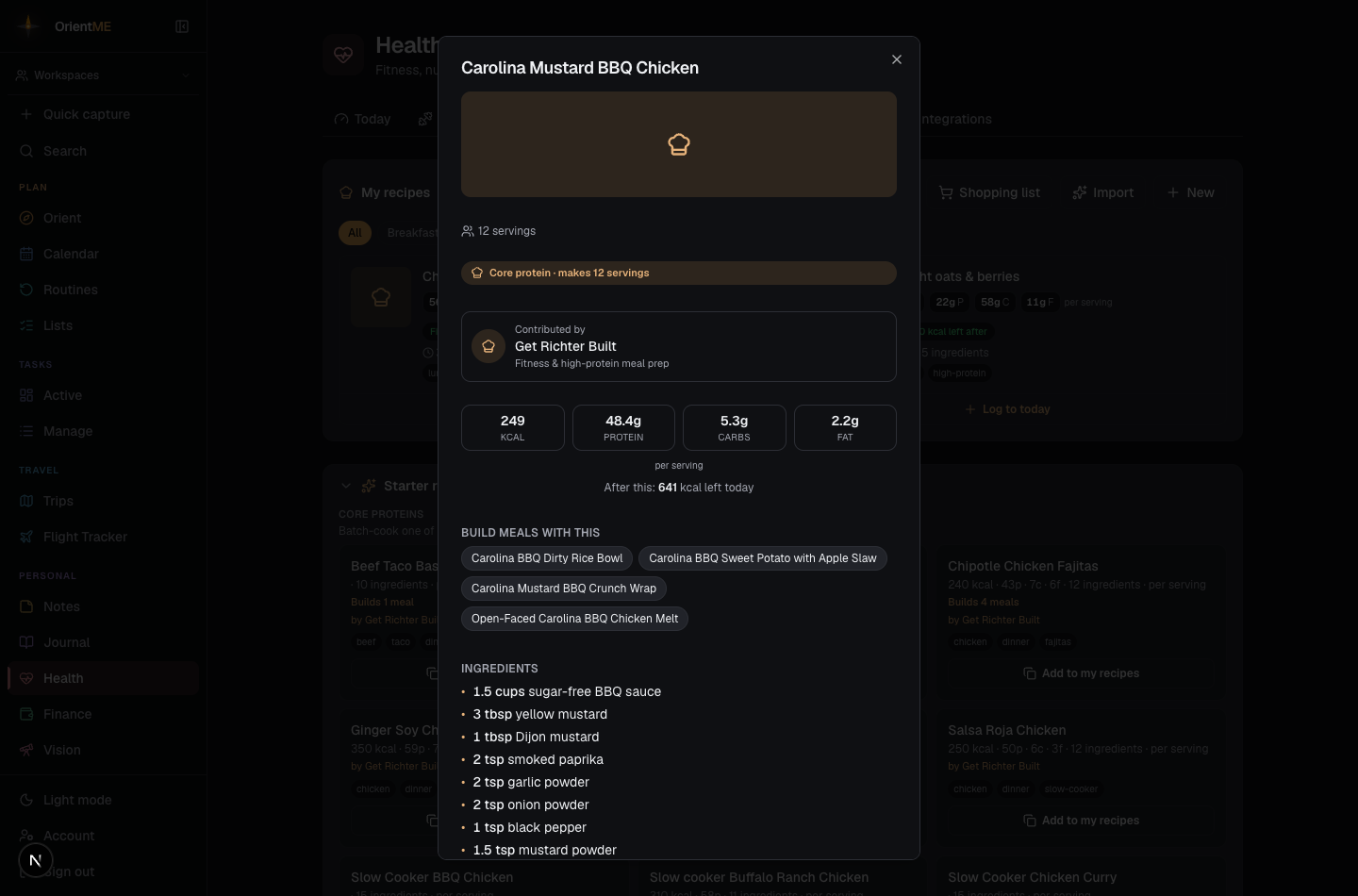
If a recipe was contributed by a featured creator, you’ll see a “Contributed by” credit on its detail (and a small “by …” on the card), so you know whose recipe it is.
Build a meal on a prepped base
If you meal-prep, OrientME models the way you actually eat: cook a base once — a batch of a protein, say — then build quick meals on one serving of it through the week.
- Save your base as its own recipe (its per-serving macros are what matter).
- When you create or edit a meal that uses it, open the Built on section, pick the base, and set how many servings of it the meal uses.
- Tap Estimate from bases + catalog and the base’s macros roll into the meal automatically, on top of any add-on ingredients — so you’re never re-doing the protein’s numbers by hand.
The meal’s detail then shows a Built from list — each base and what it contributes — and it scales with the serving stepper, so logging two servings counts two servings of the base too.
Open a core protein and you’ll see its batch yield, storage, and “Build meals with this” — every meal you can make from it:
Log a recipe to your day
Log to today — on any recipe card and inside the detail view — logs the recipe instantly: one serving, with the meal type (breakfast, lunch, dinner, or snack) chosen based on the time of day. No form to fill in — an Added toast confirms it, with an Undo button if you didn’t mean to. Ate more than one serving, or want a different meal type? Open the logged meal from the Nutrition tab and edit it there. From the Add from recipes rail on Nutrition, it logs into the day you’re currently viewing instead of today.
Adding recipes
There are three ways to add a recipe, all from the Recipes tab:
- Starter recipes — a set of curated, healthy recipes you can browse and copy. They’re split into a Core proteins section at the top — batch bases you cook once, portion, and build a week of meals on (each shows a “Builds N meals” count) — followed by the meals themselves, grouped by breakfast, lunch, dinner, and snack. Tap any card to view it, then Add to my recipes to copy it straight into your library, photo and all; adding a meal that’s built on a core protein brings that base into your library too, so you’re ready to cook the whole week. From there each behaves like a recipe you built yourself. A recipe you’ve already copied shows Added, so you won’t add the same one twice. Where a recipe came from a featured creator, a small “by …” credit appears on its card.
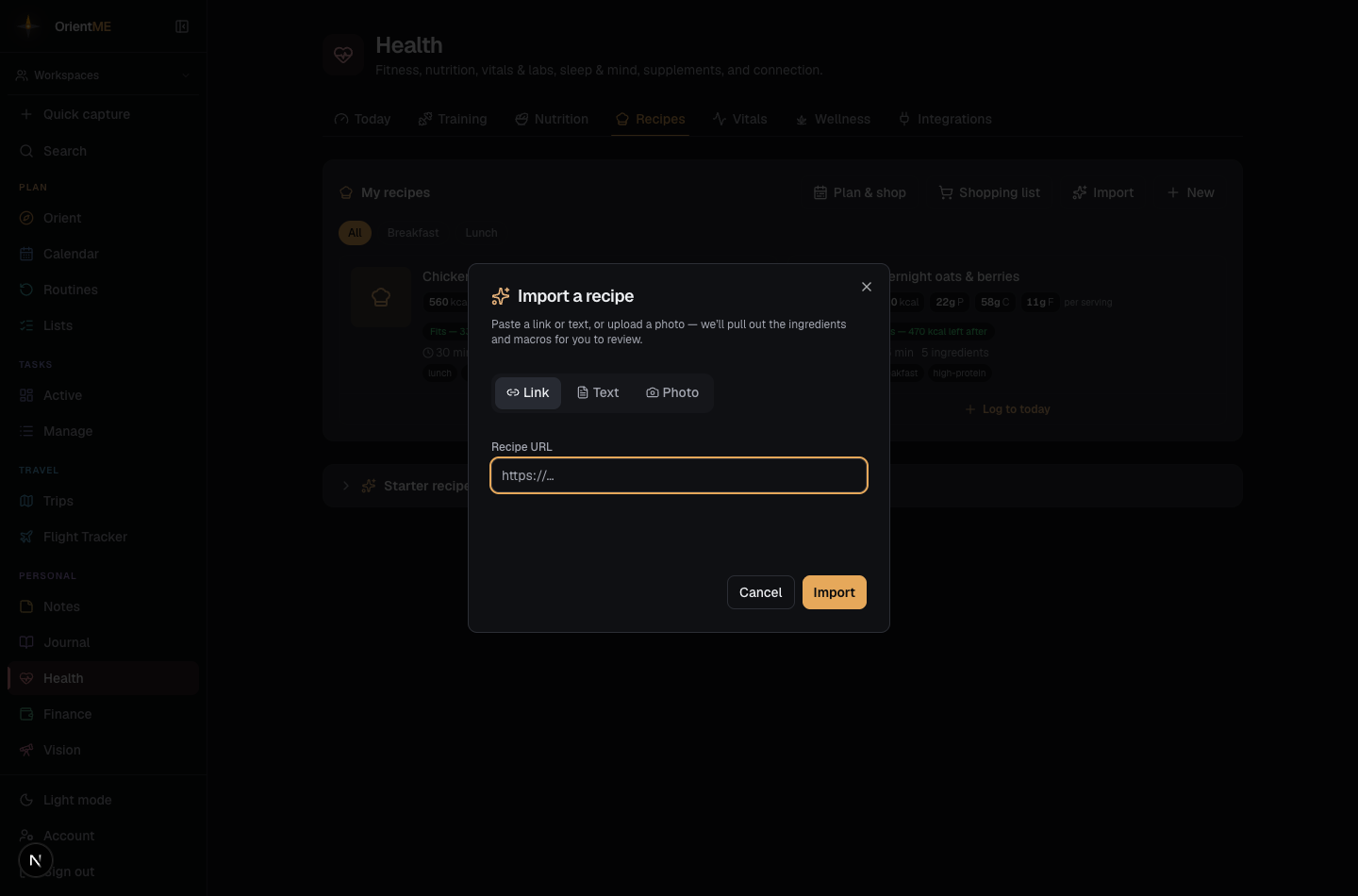
- Import — bring a recipe in automatically: paste a link, paste the recipe text, or upload a photo. OrientME pulls out the ingredients, the per-serving nutrition, and a photo if the source has one, and lays it all out for you to review and adjust before you save.
- New — build one by hand, ingredients first. Add the ingredients (type them, or use the Paste list shortcut — paste a list one per line, e.g. “2 cups rolled oats”, “½ tsp cinnamon”, “1 banana”, and OrientME splits each into quantity, unit, and name). Then tap Estimate from catalog and OrientME matches each ingredient against its built-in food list and adds up the per-serving calories and macros for you — no nutrition math, and no waiting on anything. The estimate fills in as editable numbers, so you can adjust anything (or type a value straight off a label). Add a description and a photo to finish.
The catalog estimate is a starting point — it matches what it can and skips the rest, so it’s worth a quick check (and a tweak) before saving. Recipes are meant to be exact; the food list is for quick, rough day-to-day logging.
When you’re meal-prepping, tap Plan & shop, add the recipes you plan to cook and how many servings of each, then Build list — OrientME scales every recipe to the servings you chose, combines the ingredients into a single de-duplicated list, and drops it into your Lists.