AI Analysis & report
The AI Analysis tab does two things: a plain-language overview of your investment holdings, and an exportable quarterly report that turns a calendar quarter into a written financial brief. A toggle at the top of the tab switches between Holdings analysis and Quarterly report.
Holdings analysis
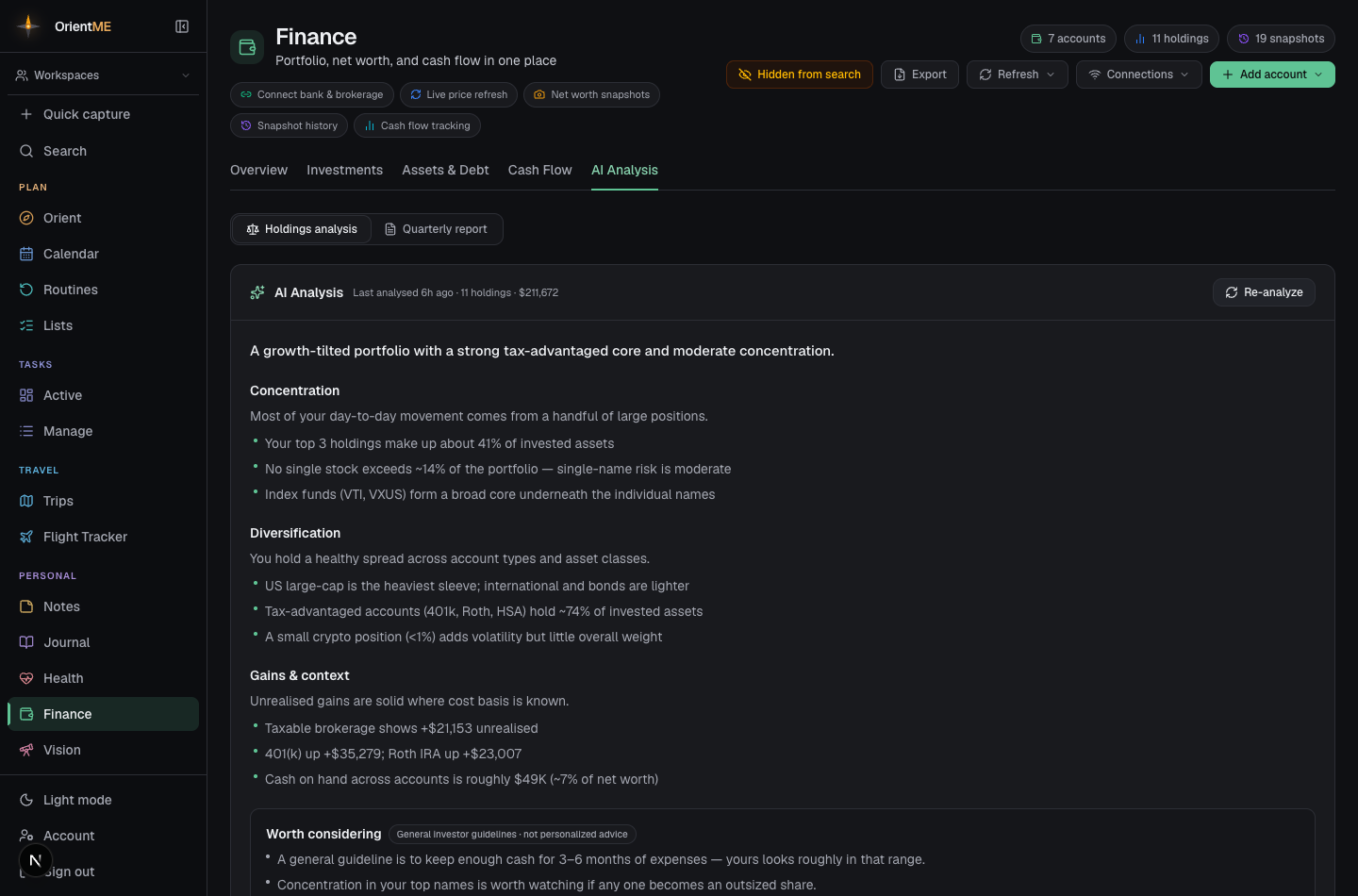
The AI Analysis tab gives you a plain-language overview of your investment holdings, tailored to your situation. Press Generate analysis and a short sheet asks a few quick questions (all optional):
- What's this money for? — growth, retirement, income, preserving capital, or a short-term need.
- Time horizon and risk comfort.
- Focus — pick what you care about most (concentration, diversification, sector exposure, fees, dividends, tax efficiency).
- How much guidance you want — from just observations to a few suggestions.
- Anything specific — a free-text note (e.g. "saving for a house in ~3 years").
A few seconds later you get a written overview that looks at your concentration and single-stock risk, diversification, sector exposure (compared against how those sectors are actually moving today), and your gains and cash position. It finishes with a Worth considering section — a few points based on general investor guidelines, clearly flagged as general guidance, not personalized advice.
Your answers and the analysis are saved, so the tab opens instantly next time and the sheet remembers your last choices. Press Re-analyze whenever your holdings change to refresh it (the tab tells you when they’ve drifted since the last run).
This overview is AI-generated from your holdings and current market prices. It has no news or research, its suggestions are only general investor guidelines, and it is not a substitute for a licensed financial professional. Don’t make buy or sell decisions based on it.
The holdings it analyzes come from your Investments tab — add or update positions there and re-analyze to keep the overview current.
Quarterly report
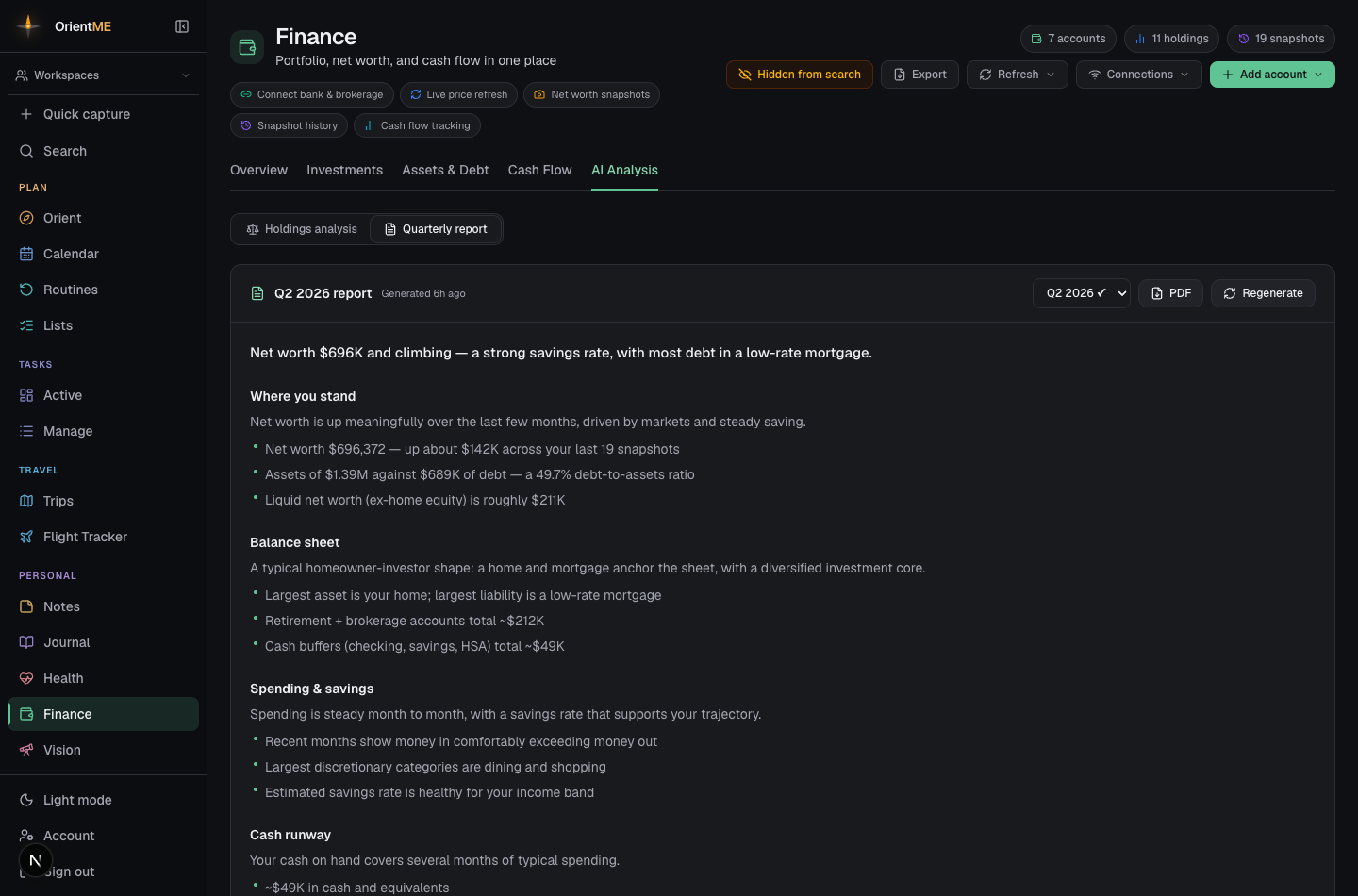
The AI Analysis tab can also turn a single calendar quarter into a plain-language financial brief — a written summary of where you stand, where your money went, and what's worth a second look. A toggle at the top of the tab switches between Holdings analysis (the overview above) and Quarterly report.
Create a report
- Open the AI Analysis tab and switch the toggle to Quarterly report.
- Pick a reporting period from the picker — a calendar quarter, such as Q2 2026.
- Tap Create report.
Before it builds, an optional sheet asks a few quick questions so the brief fits your situation — what the money is for, your time horizon, your risk comfort, the focus areas you care about most, and how much guidance you want. Every question is optional, and these are the same ones the holdings Analyze feature asks, so they'll feel familiar. A few seconds later your brief appears.
What's in the brief
Your report reads as a short, plain-language summary covering:
- Where you stand — your net worth, with a frozen balance sheet of assets versus debt for the quarter.
- Where your money went — your top spending categories and your savings rate, plus the biggest individual purchases in your top categories, so you can see at a glance what drove each one.
- Your cash cushion — how long your cash would last (your cash runway) and how your debt compares to your cash on hand.
- Your biggest concentration risk — the single largest position weighing on your portfolio.
It closes with a Worth considering section — a few points grounded in general financial guidelines, clearly flagged as general guidance.
The figures are a snapshot in time for the quarter you chose. There's no quarter-over-quarter trend yet, so each brief stands on its own.
The report is educational, not financial advice. A disclaimer is always shown. Its points are general financial guidelines, not a recommendation, and they're not a substitute for a licensed financial professional. Don't make money decisions based on it alone.
Save, switch, and regenerate
Each report is saved for its period, so switching back to Quarterly report brings your brief back instantly. Switch the picker to a different quarter to read or create another, or press Regenerate to rebuild the current one.
Export it
- On the web, press PDF — it opens the report in a new browser tab with your browser's print dialog, where you can choose Save as PDF.
- On mobile, press PDF to export the same printable brief as a PDF through your phone's share sheet (Save to Files, Mail, AirDrop, …), or Share for a plain-text version ready to paste anywhere.